Pro Git · Eduspaces ·
https://eduspaces.ro/s/pro-git/figuri/
https://eduspaces.ro/s/pro-git/figuri/
Figuri și tabele
188 figuri și tabele, fiecare legată de conceptele pe care le ilustrează (după legendă, etichetele din imagine și textul care o citează).
 Figură fără număr, p. 1 p. 1
(fără legendă)
Figură fără număr, p. 1 p. 1
(fără legendă)
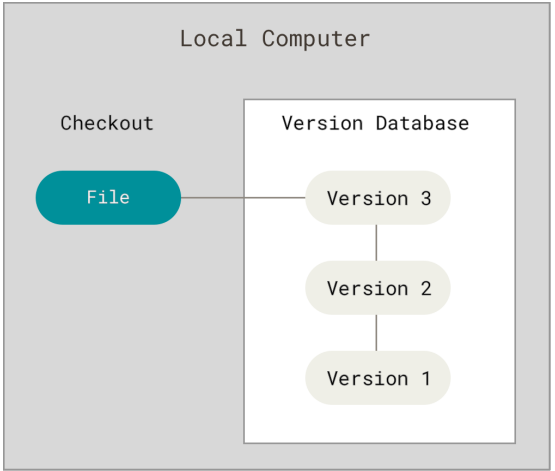 Figure 1 p. 17
Local version control diagram
Version controlgit checkout
Figure 1 p. 17
Local version control diagram
Version controlgit checkout
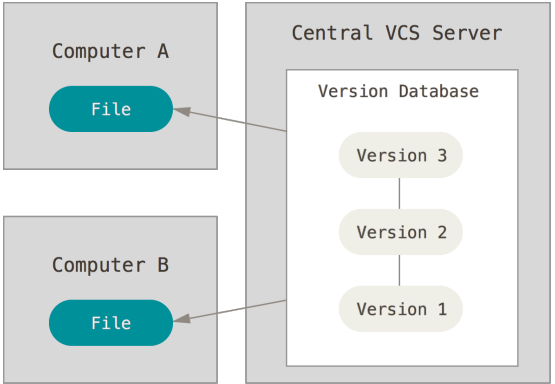 Figure 2 p. 18
Centralized version control diagram
Version controlVersion Control System
Figure 2 p. 18
Centralized version control diagram
Version controlVersion Control System
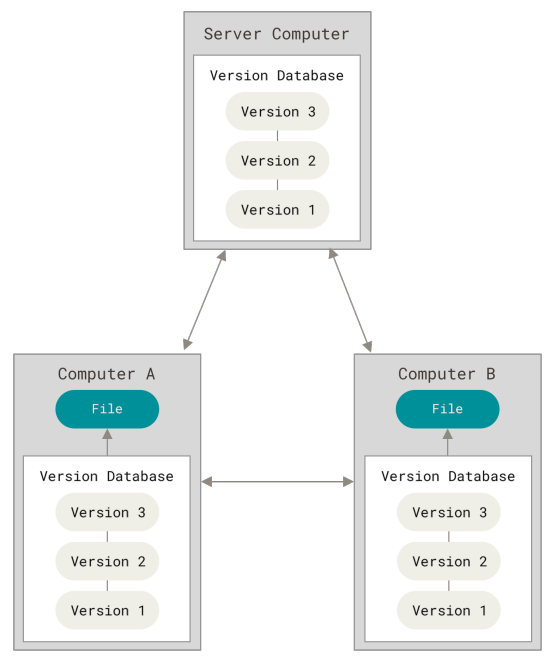 Figure 3 p. 19
Distributed version control diagram
Distributed Version Control System
Figure 3 p. 19
Distributed version control diagram
Distributed Version Control System
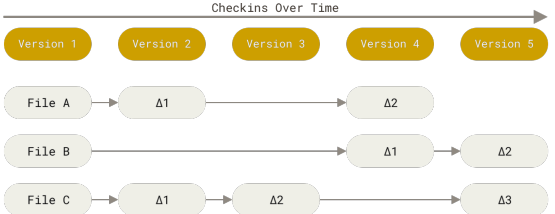 Figure 4 p. 21
Storing data as changes to a base version of each file
Figure 4 p. 21
Storing data as changes to a base version of each file
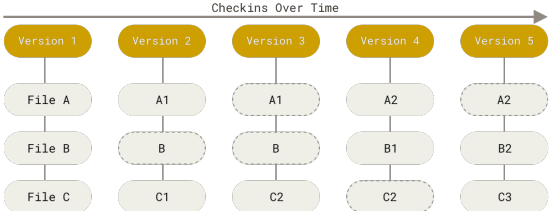 Figure 5 p. 21
Storing data as snapshots of the project over time
Snapshot
Figure 5 p. 21
Storing data as snapshots of the project over time
Snapshot
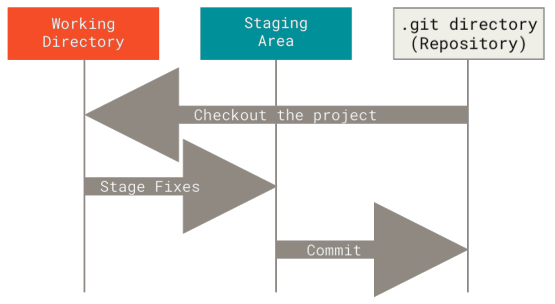 Figure 6 p. 23
Working tree, staging area, and Git directory
Staging areaGit directoryWorking treeCommit
Figure 6 p. 23
Working tree, staging area, and Git directory
Staging areaGit directoryWorking treeCommit
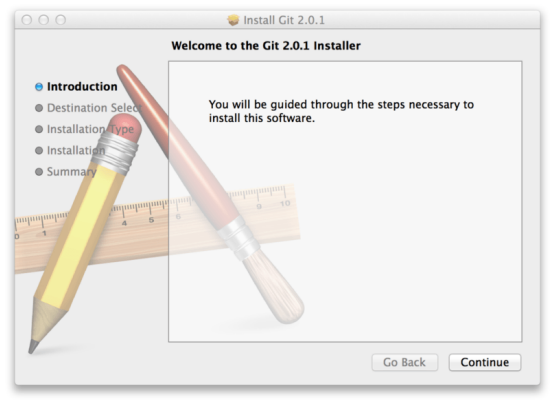 Figure 7 p. 25
Git macOS installer
Figure 7 p. 25
Git macOS installer
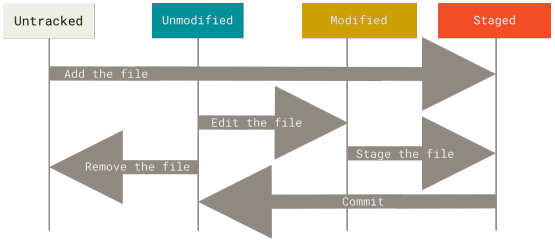 Figure 8 p. 34
The lifecycle of the status of your files
ModifiedStagedUnmodifiedUntracked file
Figure 8 p. 34
The lifecycle of the status of your files
ModifiedStagedUnmodifiedUntracked file
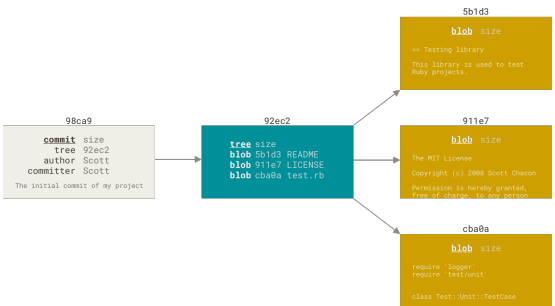 Figure 9 p. 70
A commit and its tree
CommitTree objectAuthorBlobCommitter
Figure 9 p. 70
A commit and its tree
CommitTree objectAuthorBlobCommitter
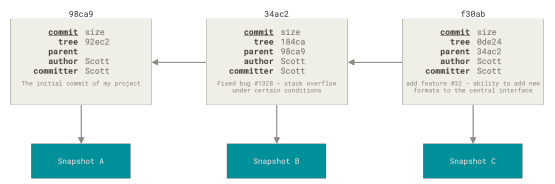 Figure 10 p. 70
Commits and their parents
CommitParent commitAuthorCommitterSnapshot+1
Figure 10 p. 70
Commits and their parents
CommitParent commitAuthorCommitterSnapshot+1
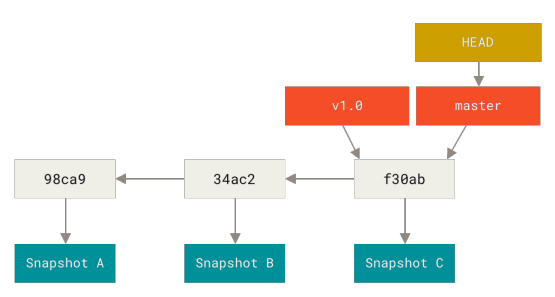 Figure 11 p. 71
A branch and its commit history
BranchCommit history
Figure 11 p. 71
A branch and its commit history
BranchCommit history
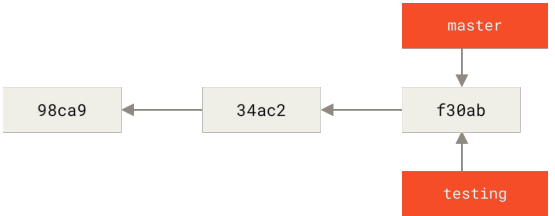 Figure 12 p. 71
Two branches pointing into the same series of commits
BranchCommit
Figure 12 p. 71
Two branches pointing into the same series of commits
BranchCommit
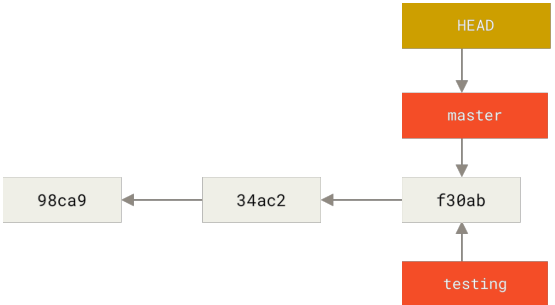 Figure 13 p. 72
HEAD pointing to a branch
BranchHEAD
Figure 13 p. 72
HEAD pointing to a branch
BranchHEAD
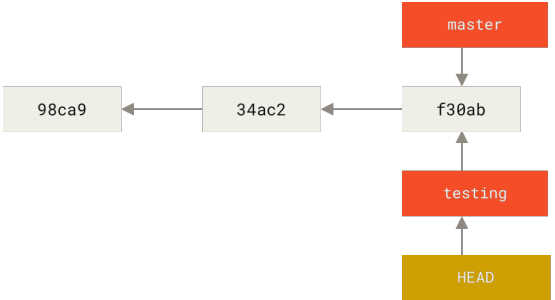 Figure 14 p. 73
HEAD points to the current branch
HEADBranch
Figure 14 p. 73
HEAD points to the current branch
HEADBranch
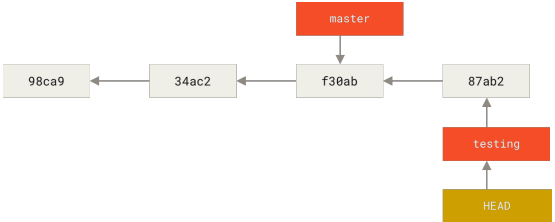 Figure 15 p. 73
The HEAD branch moves forward when a commit is made
BranchCommitHEAD
Figure 15 p. 73
The HEAD branch moves forward when a commit is made
BranchCommitHEAD
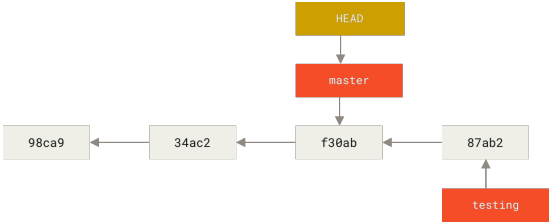 Figure 16 p. 74
HEAD moves when you checkout
HEADgit checkoutmaster
Figure 16 p. 74
HEAD moves when you checkout
HEADgit checkoutmaster
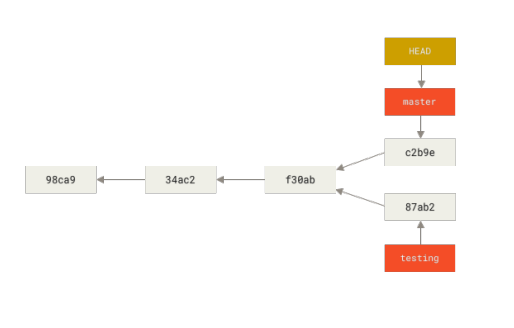 Figure 17 p. 75
Divergent history
Divergent history
Figure 17 p. 75
Divergent history
Divergent history
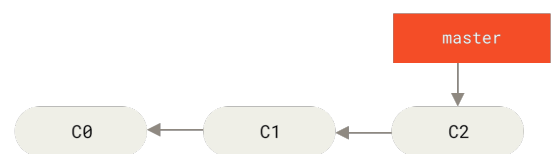 Figure 18 p. 76
A simple commit history
Commit history
Figure 18 p. 76
A simple commit history
Commit history
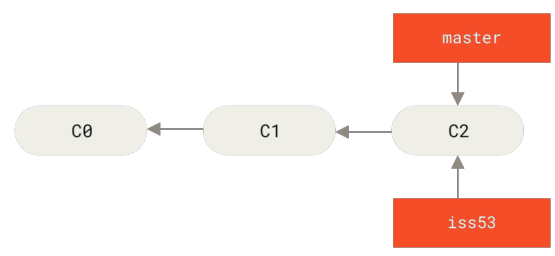 Figure 19 p. 77
Creating a new branch pointer
Branch
Figure 19 p. 77
Creating a new branch pointer
Branch
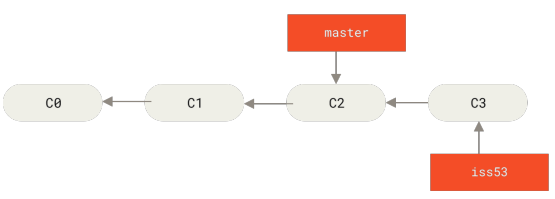 Figure 20 p. 78
The iss53 branch has moved forward with your work
Branch
Figure 20 p. 78
The iss53 branch has moved forward with your work
Branch
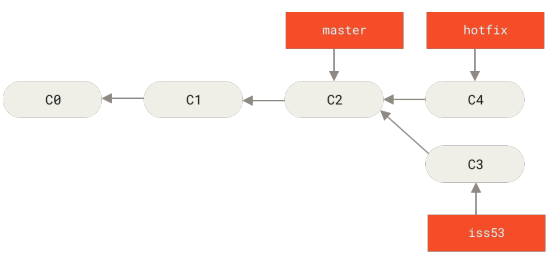 Figure 21 p. 79
Hotfix branch based on master
Branchmaster
Figure 21 p. 79
Hotfix branch based on master
Branchmaster
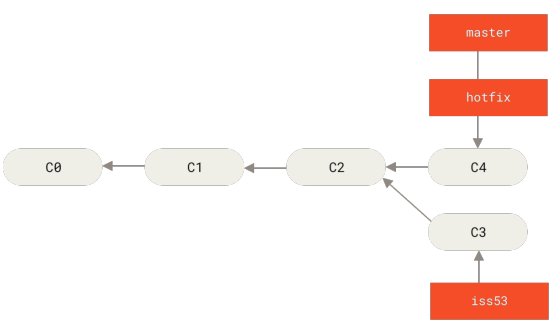 Figure 22 p. 80
master is fast-forwarded to hotfix
masterFast-forward
Figure 22 p. 80
master is fast-forwarded to hotfix
masterFast-forward
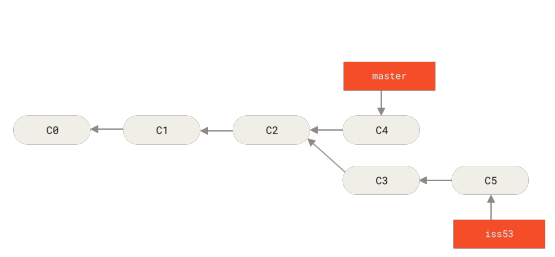 Figure 23 p. 81
Work continues on iss53
Figure 23 p. 81
Work continues on iss53
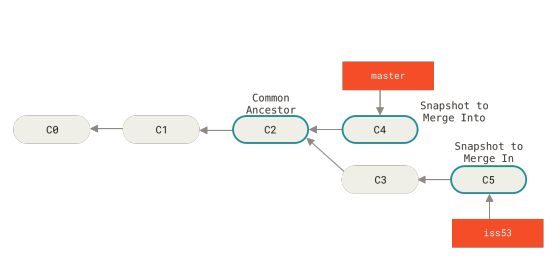 Figure 24 p. 82
Three snapshots used in a typical merge
MergeSnapshotCommon ancestor
Figure 24 p. 82
Three snapshots used in a typical merge
MergeSnapshotCommon ancestor
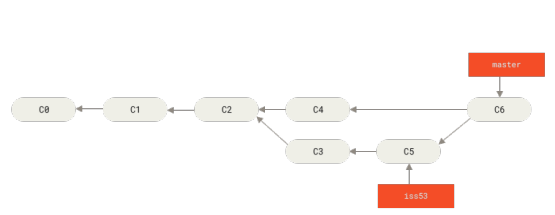 Figure 25 p. 82
A merge commit
Merge commit
Figure 25 p. 82
A merge commit
Merge commit
 Figure 26 p. 89
A linear view of progressive-stability branching
Branching
Figure 26 p. 89
A linear view of progressive-stability branching
Branching
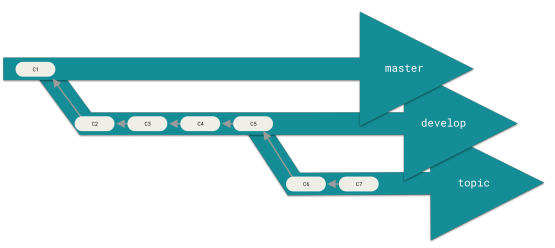 Figure 27 p. 89
A “silo” view of progressive-stability branching
Branchingmaster
Figure 27 p. 89
A “silo” view of progressive-stability branching
Branchingmaster
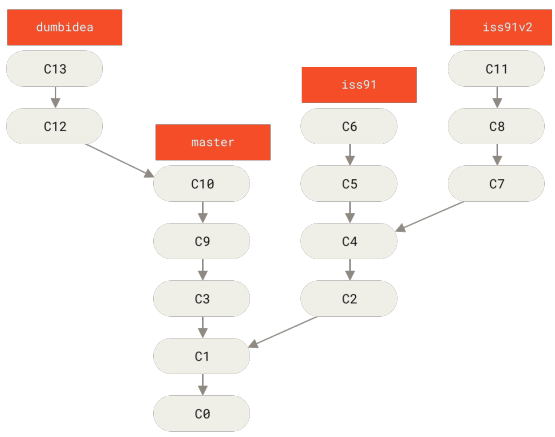 Figure 28 p. 90
Multiple topic branches
Topic branch
Figure 28 p. 90
Multiple topic branches
Topic branch
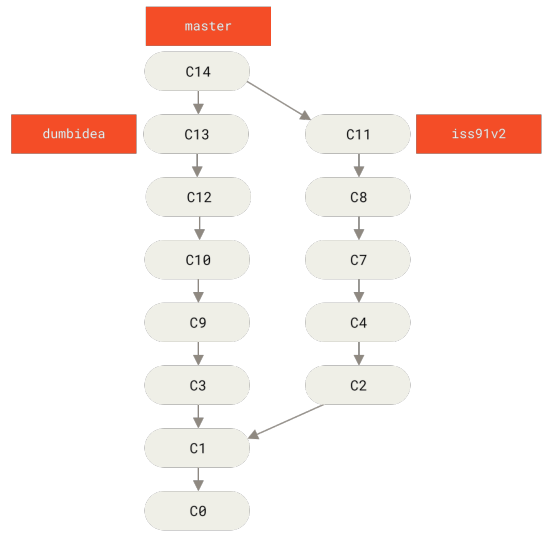 Figure 29 p. 91
History after merging dumbidea and iss91v2
Commit historyMerge
Figure 29 p. 91
History after merging dumbidea and iss91v2
Commit historyMerge
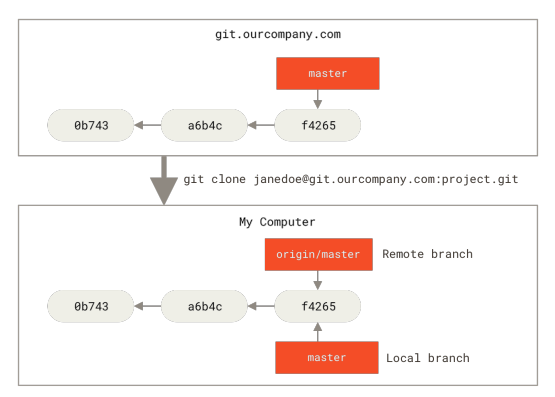 Figure 30 p. 93
Server and local repositories after cloning
git cloneRepositoryBranchmasterorigin+1
Figure 30 p. 93
Server and local repositories after cloning
git cloneRepositoryBranchmasterorigin+1
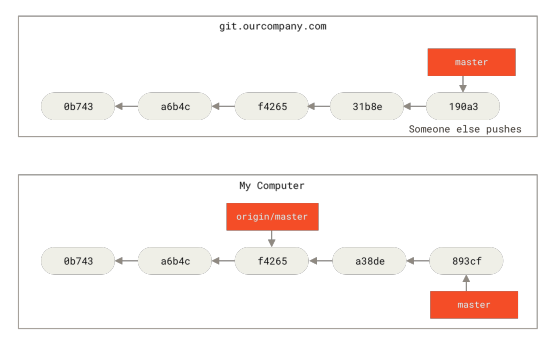 Figure 31 p. 94
Local and remote work can diverge
Divergent historyRemote repositorygit pushmasterorigin
Figure 31 p. 94
Local and remote work can diverge
Divergent historyRemote repositorygit pushmasterorigin
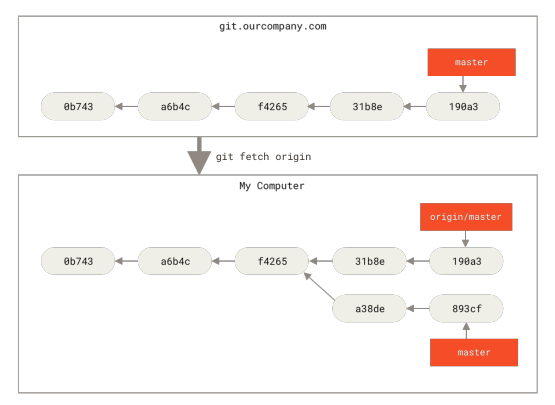 Figure 32 p. 95
git fetch updates your remote-tracking branches
git fetchRemote-tracking branchmasterorigin
Figure 32 p. 95
git fetch updates your remote-tracking branches
git fetchRemote-tracking branchmasterorigin
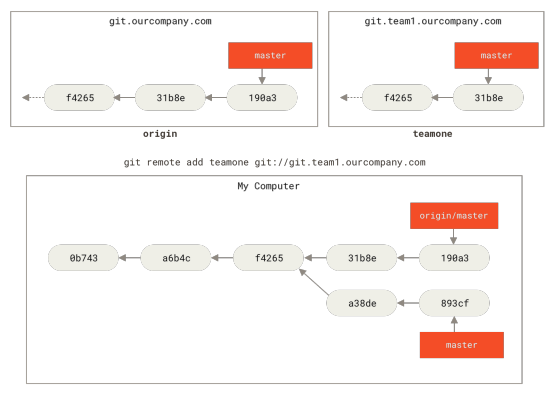 Figure 33 p. 96
Adding another server as a remote
Remote repositorygit remotemasterorigin
Figure 33 p. 96
Adding another server as a remote
Remote repositorygit remotemasterorigin
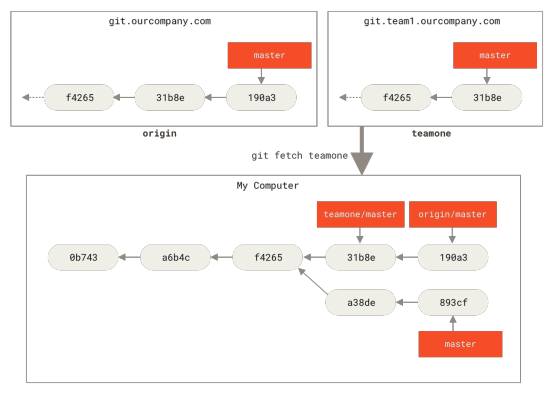 Figure 34 p. 97
Remote-tracking branch for teamone/master
masterRemote-tracking branchgit fetchorigin
Figure 34 p. 97
Remote-tracking branch for teamone/master
masterRemote-tracking branchgit fetchorigin
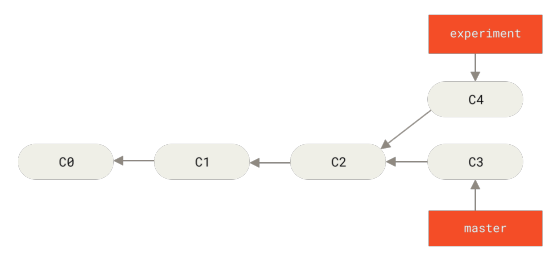 Figure 35 p. 101
Simple divergent history
Divergent history
Figure 35 p. 101
Simple divergent history
Divergent history
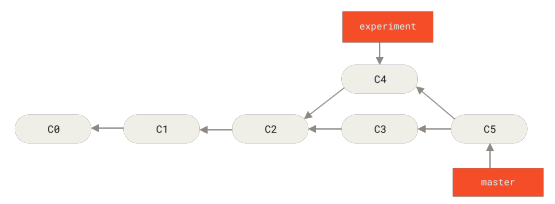 Figure 36 p. 102
Merging to integrate diverged work history
Commit historyDivergent historyMerge
Figure 36 p. 102
Merging to integrate diverged work history
Commit historyDivergent historyMerge
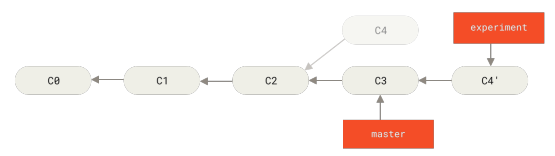 Figure 37 p. 102
Rebasing the change introduced in C4 onto C3
Rebase
Figure 37 p. 102
Rebasing the change introduced in C4 onto C3
Rebase
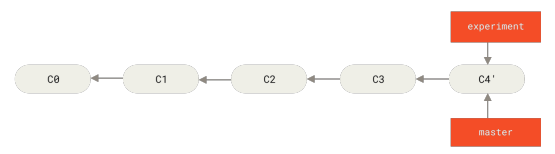 Figure 38 p. 103
Fast-forwarding the master branch
Fast-forwardmaster
Figure 38 p. 103
Fast-forwarding the master branch
Fast-forwardmaster
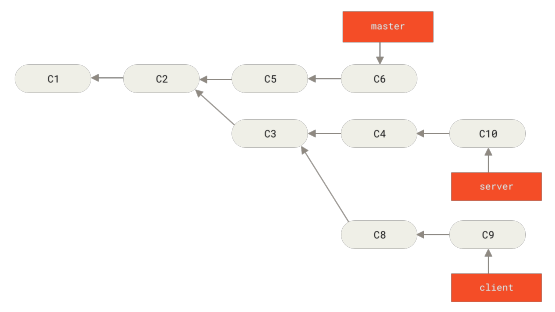 Figure 39 p. 104
A history with a topic branch off another topic branch
Topic branchCommit history
Figure 39 p. 104
A history with a topic branch off another topic branch
Topic branchCommit history
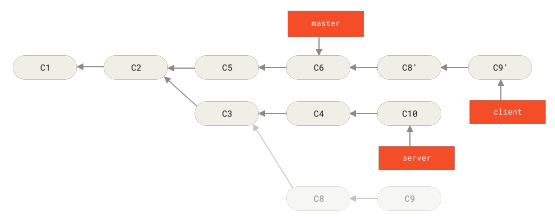 Figure 40 p. 104
Rebasing a topic branch off another topic branch
Topic branchRebase
Figure 40 p. 104
Rebasing a topic branch off another topic branch
Topic branchRebase
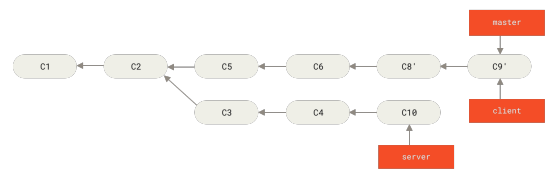 Figure 41 p. 105
Fast-forwarding your master branch to include the client branch changes
BranchFast-forwardmaster
Figure 41 p. 105
Fast-forwarding your master branch to include the client branch changes
BranchFast-forwardmaster
 Figure 42 p. 105
Rebasing your server branch on top of your master branch
BranchmasterRebase
Figure 42 p. 105
Rebasing your server branch on top of your master branch
BranchmasterRebase
 Figure 43 p. 106
Final commit history
Commit history
Figure 43 p. 106
Final commit history
Commit history
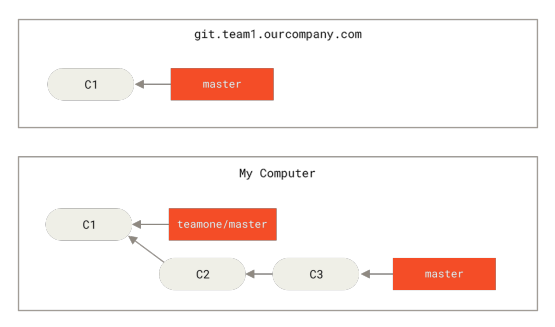 Figure 44 p. 106
Clone a repository, and base some work on it
git cloneRepository
Figure 44 p. 106
Clone a repository, and base some work on it
git cloneRepository
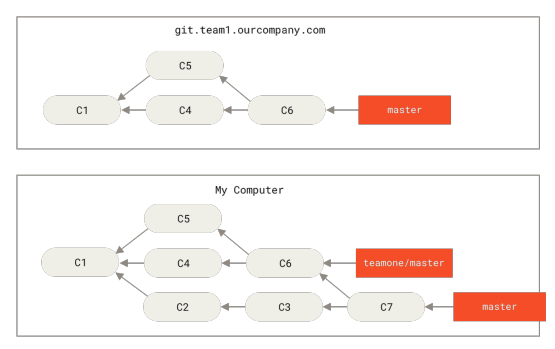 Figure 45 p. 107
Fetch more commits, and merge them into your work
Commitgit fetchMerge
Figure 45 p. 107
Fetch more commits, and merge them into your work
Commitgit fetchMerge
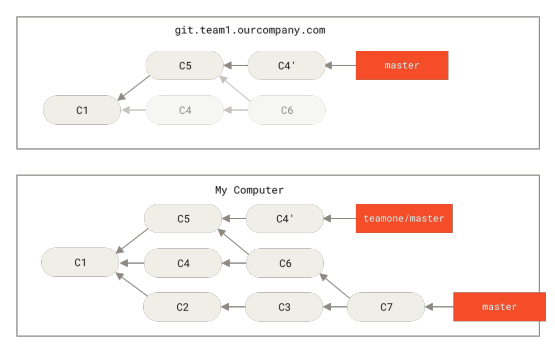 Figure 46 p. 107
Someone pushes rebased commits, abandoning commits you’ve based your work on
Commitgit pushRebase
Figure 46 p. 107
Someone pushes rebased commits, abandoning commits you’ve based your work on
Commitgit pushRebase
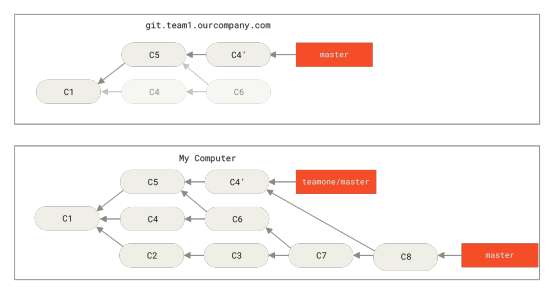 Figure 47 p. 108
You merge in the same work again into a new merge commit
MergeMerge commit
Figure 47 p. 108
You merge in the same work again into a new merge commit
MergeMerge commit
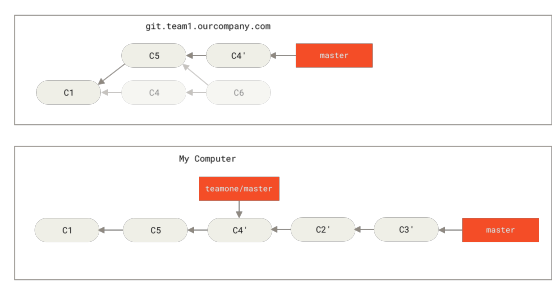 Figure 48 p. 109
Rebase on top of force-pushed rebase work
RebaseForce push
Figure 48 p. 109
Rebase on top of force-pushed rebase work
RebaseForce push
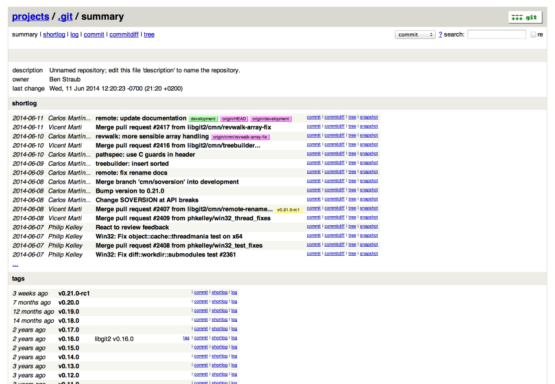 Figure 49 p. 125
The GitWeb web-based user interface
GitWebBranchCommitGit objectsGitHub API+6
Figure 49 p. 125
The GitWeb web-based user interface
GitWebBranchCommitGit objectsGitHub API+6
 Figure 50 p. 127
The “Admin area” item in the GitLab menu
GitLab
Figure 50 p. 127
The “Admin area” item in the GitLab menu
GitLab
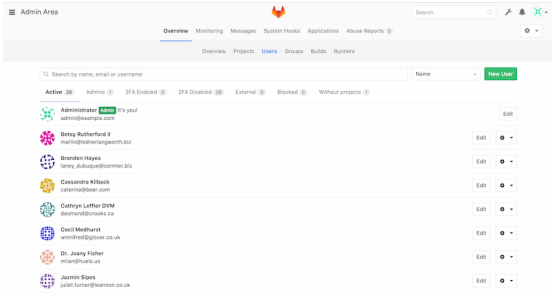 Figure 51 p. 128
The GitLab user administration screen
GitLabGit hooksTwo-factor authentication
Figure 51 p. 128
The GitLab user administration screen
GitLabGit hooksTwo-factor authentication
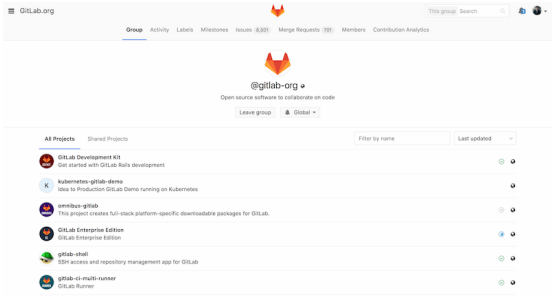 Figure 52 p. 129
The GitLab group administration screen
GitLabMergeRepositorySSH protocol
Figure 52 p. 129
The GitLab group administration screen
GitLabMergeRepositorySSH protocol
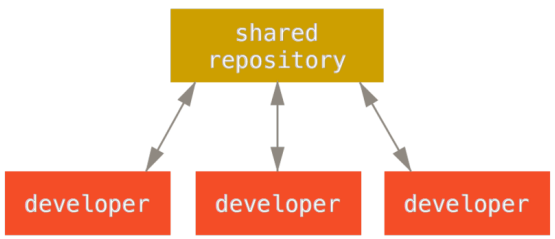 Figure 53 p. 132
Centralized workflow
Centralized workflowRepository
Figure 53 p. 132
Centralized workflow
Centralized workflowRepository
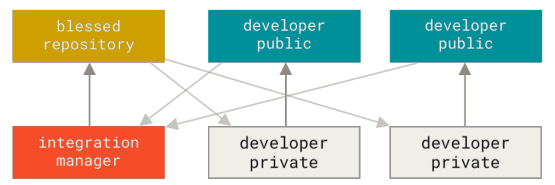 Figure 54 p. 133
Integration-manager workflow
Integration-manager workflow
Figure 54 p. 133
Integration-manager workflow
Integration-manager workflow
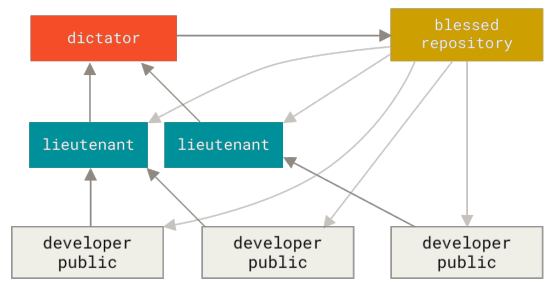 Figure 55 p. 134
Benevolent dictator workflow
Dictator and lieutenants workflowRepository
Figure 55 p. 134
Benevolent dictator workflow
Dictator and lieutenants workflowRepository
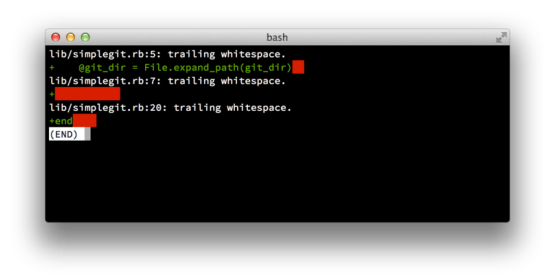 Figure 56 p. 136
Output of git diff --check
Commit guidelines
Figure 56 p. 136
Output of git diff --check
Commit guidelines
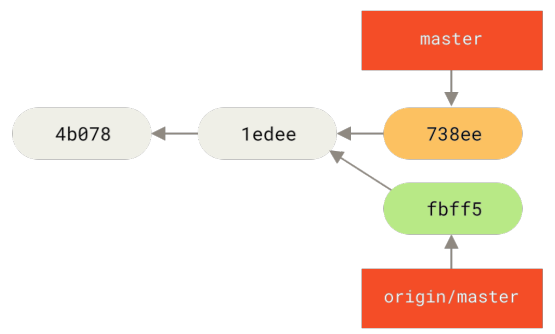 Figure 57 p. 139
John’s divergent history
Divergent historymasterorigin
Figure 57 p. 139
John’s divergent history
Divergent historymasterorigin
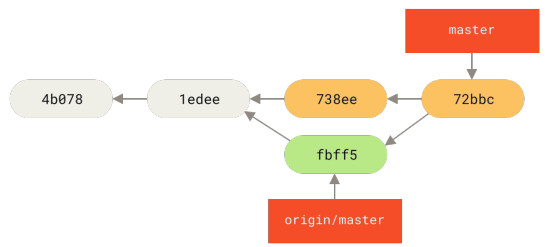 Figure 58 p. 140
John’s repository after merging origin/master
masteroriginMergeRepository
Figure 58 p. 140
John’s repository after merging origin/master
masteroriginMergeRepository
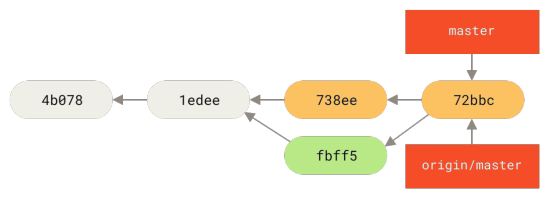 Figure 59 p. 140
John’s history after pushing to the origin server
originCommit historygit pushmaster
Figure 59 p. 140
John’s history after pushing to the origin server
originCommit historygit pushmaster
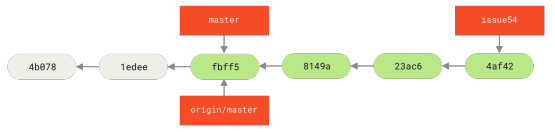 Figure 60 p. 141
Jessica’s topic branch
Topic branchmasterorigin
Figure 60 p. 141
Jessica’s topic branch
Topic branchmasterorigin
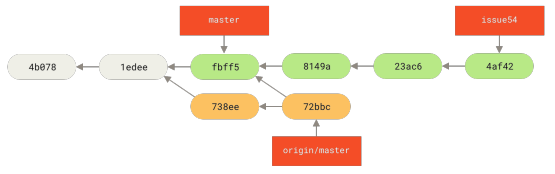 Figure 61 p. 141
Jessica’s history after fetching John’s changes
Commit historygit fetchmasterorigin
Figure 61 p. 141
Jessica’s history after fetching John’s changes
Commit historygit fetchmasterorigin
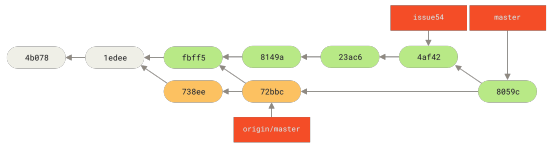 Figure 62 p. 143
Jessica’s history after merging John’s changes
Commit historyMergemasterorigin
Figure 62 p. 143
Jessica’s history after merging John’s changes
Commit historyMergemasterorigin
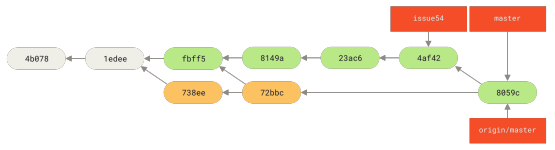 Figure 63 p. 143
Jessica’s history after pushing all changes back to the server
Commit historygit push
Figure 63 p. 143
Jessica’s history after pushing all changes back to the server
Commit historygit push
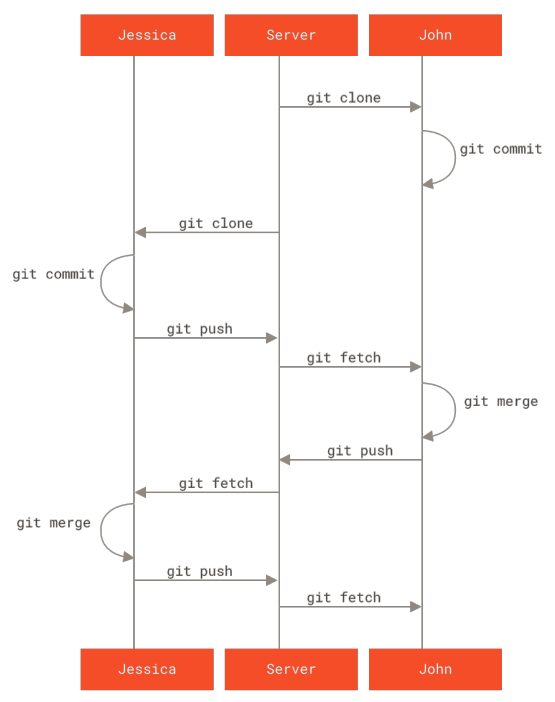 Figure 64 p. 144
General sequence of events for a simple multiple-developer Git workflow
Basic Git workflowgit clonegit commitgit fetchgit merge+1
Figure 64 p. 144
General sequence of events for a simple multiple-developer Git workflow
Basic Git workflowgit clonegit commitgit fetchgit merge+1
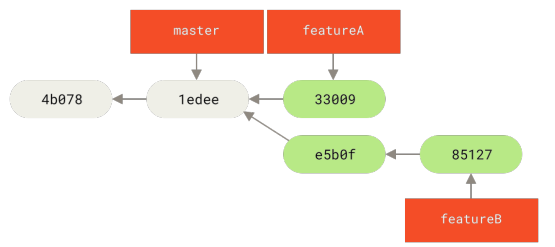 Figure 65 p. 146
Jessica’s initial commit history
Commit history
Figure 65 p. 146
Jessica’s initial commit history
Commit history
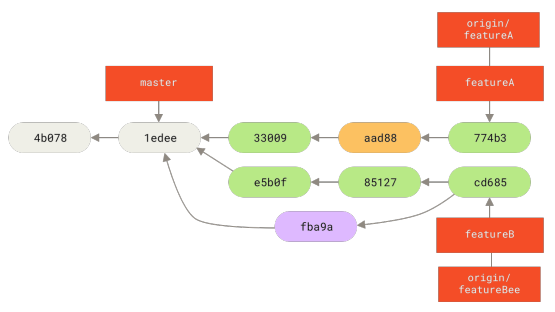 Figure 66 p. 148
Jessica’s history after committing on a feature branch
BranchCommit historyorigin
Figure 66 p. 148
Jessica’s history after committing on a feature branch
BranchCommit historyorigin
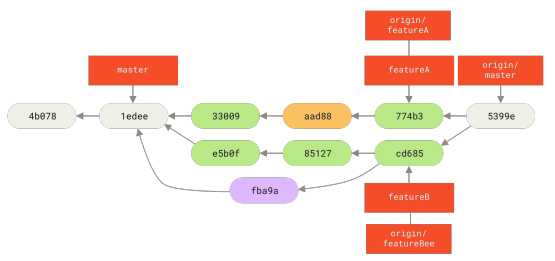 Figure 67 p. 148
Jessica’s history after merging both her topic branches
Commit historyMergeTopic branchmasterorigin
Figure 67 p. 148
Jessica’s history after merging both her topic branches
Commit historyMergeTopic branchmasterorigin
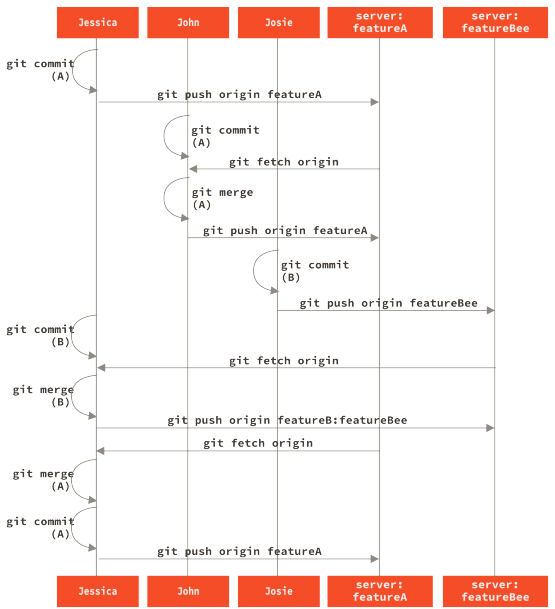 Figure 68 p. 149
Basic sequence of this managed-team workflow
git commitgit fetchgit mergegit pushorigin
Figure 68 p. 149
Basic sequence of this managed-team workflow
git commitgit fetchgit mergegit pushorigin
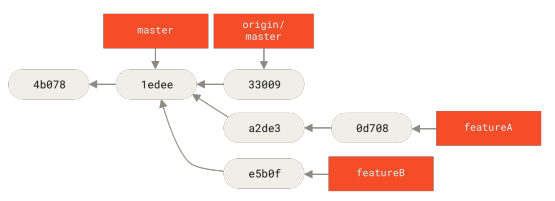 Figure 69 p. 152
Initial commit history with featureB work
Commit historymasterorigin
Figure 69 p. 152
Initial commit history with featureB work
Commit historymasterorigin
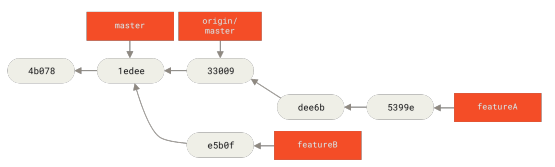 Figure 70 p. 152
Commit history after featureA work
Commit history
Figure 70 p. 152
Commit history after featureA work
Commit history
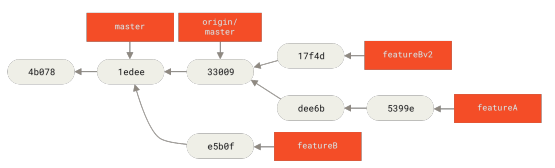 Figure 71 p. 153
Commit history after featureBv2 work
Commit historymasterorigin
Figure 71 p. 153
Commit history after featureBv2 work
Commit historymasterorigin
 Figure 72 p. 163
History with several topic branches
Commit historyTopic branch
Figure 72 p. 163
History with several topic branches
Commit historyTopic branch
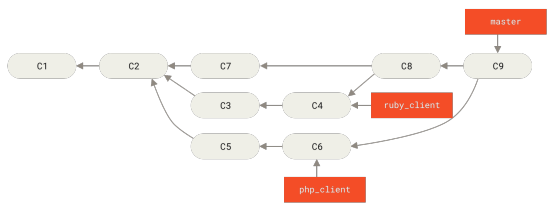 Figure 73 p. 163
After a topic branch merge
MergeTopic branch
Figure 73 p. 163
After a topic branch merge
MergeTopic branch
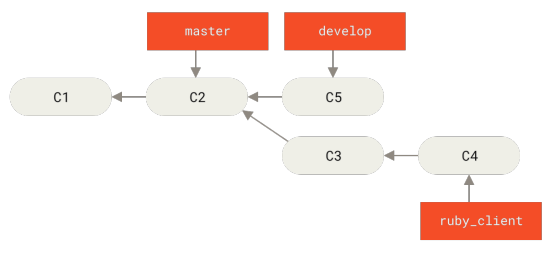 Figure 74 p. 164
Before a topic branch merge
MergeTopic branch
Figure 74 p. 164
Before a topic branch merge
MergeTopic branch
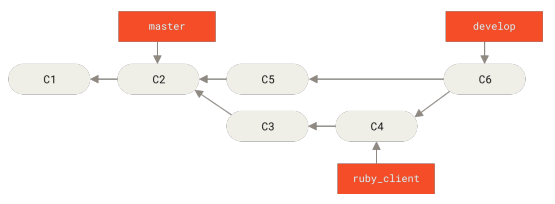 Figure 75 p. 164
After a topic branch merge
MergeTopic branch
Figure 75 p. 164
After a topic branch merge
MergeTopic branch
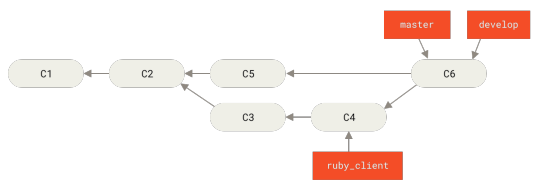 Figure 76 p. 164
After a project release
Figure 76 p. 164
After a project release
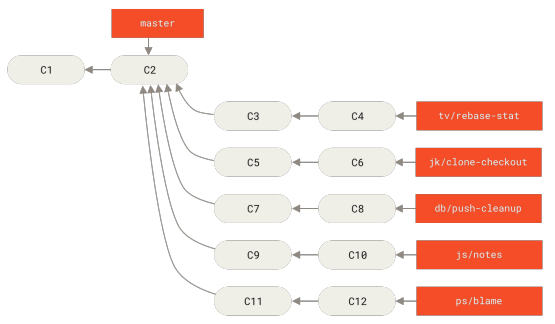 Figure 77 p. 165
Managing a complex series of parallel contributed topic branches
Topic branch
Figure 77 p. 165
Managing a complex series of parallel contributed topic branches
Topic branch
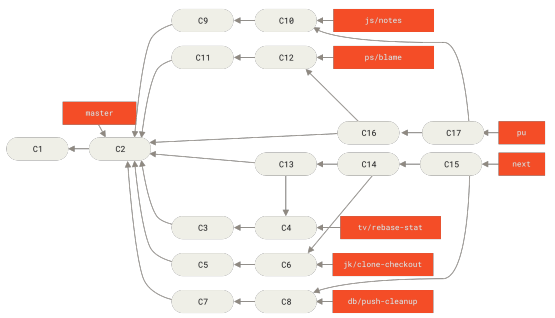 Figure 78 p. 166
Merging contributed topic branches into long-term integration branches
BranchMergeTopic branch
Figure 78 p. 166
Merging contributed topic branches into long-term integration branches
BranchMergeTopic branch
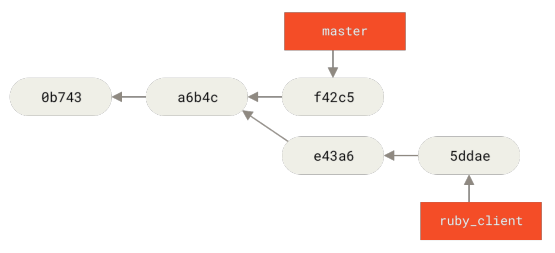 Figure 79 p. 167
Example history before a cherry-pick
Cherry-pickCommit history
Figure 79 p. 167
Example history before a cherry-pick
Cherry-pickCommit history
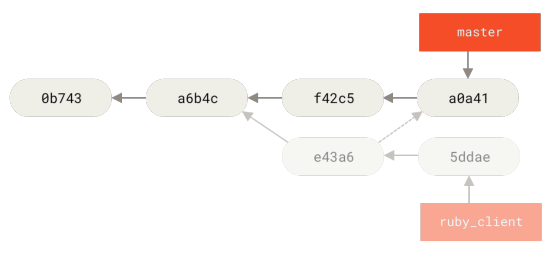 Figure 80 p. 167
History after cherry-picking a commit on a topic branch
Cherry-pickCommitCommit historyTopic branch
Figure 80 p. 167
History after cherry-picking a commit on a topic branch
Cherry-pickCommitCommit historyTopic branch
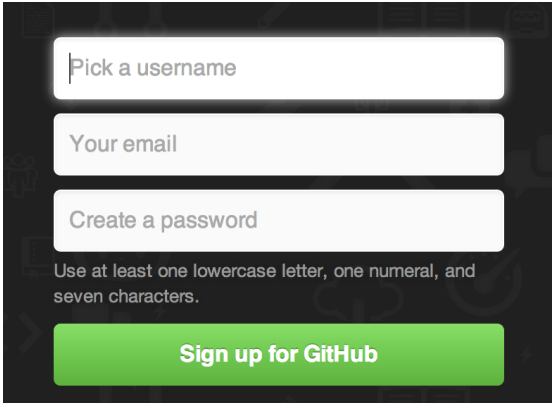 Figure 81 p. 173
The GitHub sign-up form
GitHub
Figure 81 p. 173
The GitHub sign-up form
GitHub
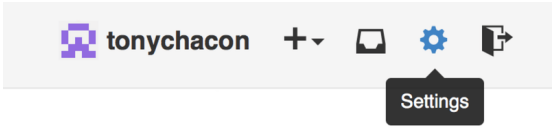 Figure 82 p. 174
The “Account settings” link
Figure 82 p. 174
The “Account settings” link
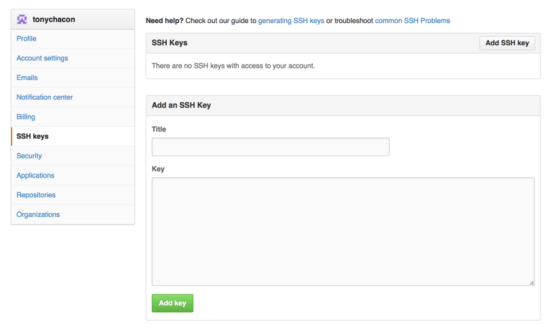 Figure 83 p. 174
The “SSH keys” link
SSH public keygit checkoutGitHub organizationSSH protocol
Figure 83 p. 174
The “SSH keys” link
SSH public keygit checkoutGitHub organizationSSH protocol
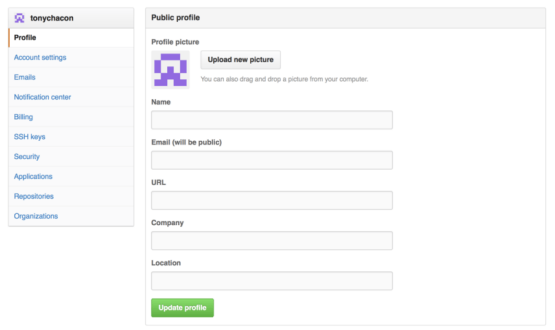 Figure 84 p. 175
The “Profile” link
GitHub organizationSSH public key
Figure 84 p. 175
The “Profile” link
GitHub organizationSSH public key
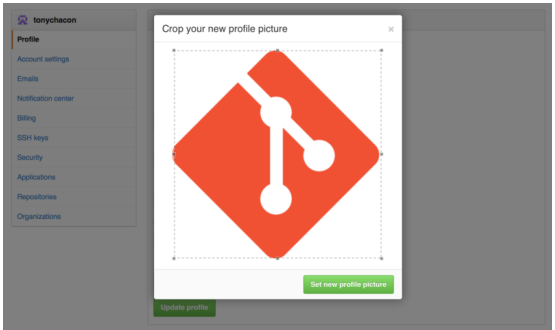 Figure 85 p. 175
Crop your uploaded avatar
Figure 85 p. 175
Crop your uploaded avatar
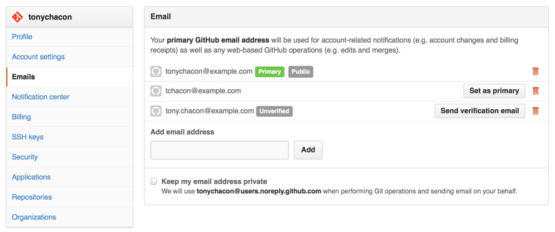 Figure 86 p. 176
Add all your email addresses
GitHubGitHub organizationMergeRepositorySSH public key
Figure 86 p. 176
Add all your email addresses
GitHubGitHub organizationMergeRepositorySSH public key
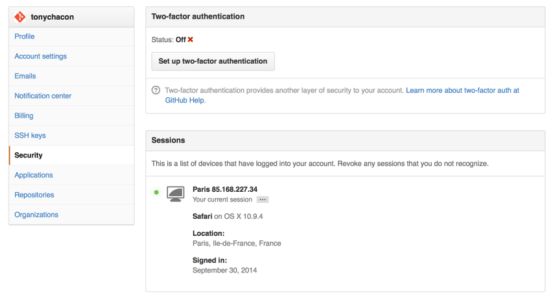 Figure 87 p. 177
FA in the Security Tab
Two-factor authenticationGitHubGitHub organizationSSH public key
Figure 87 p. 177
FA in the Security Tab
Two-factor authenticationGitHubGitHub organizationSSH public key
 Figure 88 p. 178
The “Fork” button
Fork
Figure 88 p. 178
The “Fork” button
Fork
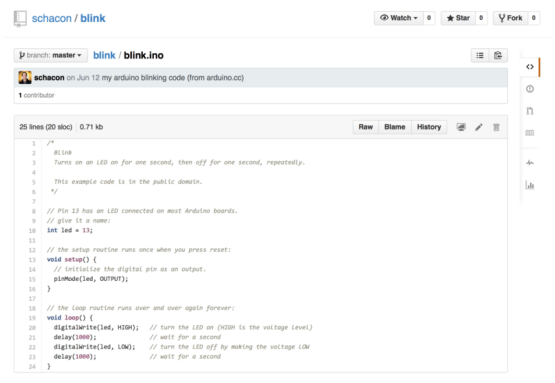 Figure 89 p. 179
The project we want to contribute to
Commit historygit resetmaster
Figure 89 p. 179
The project we want to contribute to
Commit historygit resetmaster
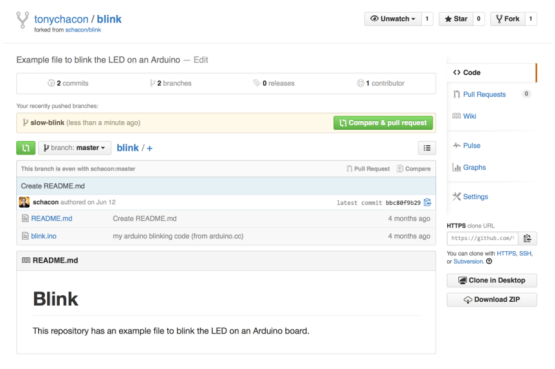 Figure 90 p. 181
Pull Request button
Pull RequestAuthorBranchCommitFork+6
Figure 90 p. 181
Pull Request button
Pull RequestAuthorBranchCommitFork+6
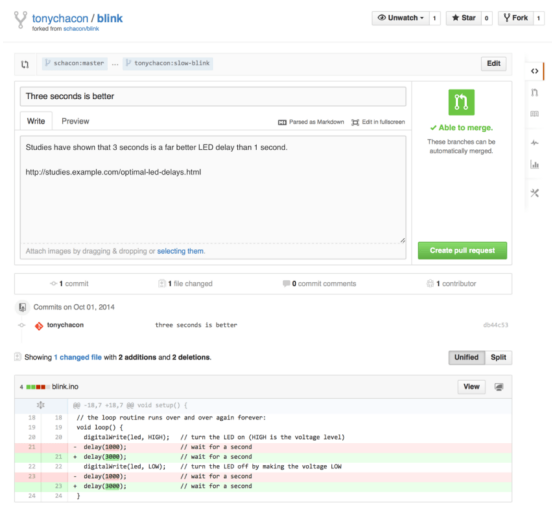 Figure 91 p. 182
Pull Request creation page
Pull RequestBranchCommitForkGitHub Flavored Markdown+2
Figure 91 p. 182
Pull Request creation page
Pull RequestBranchCommitForkGitHub Flavored Markdown+2
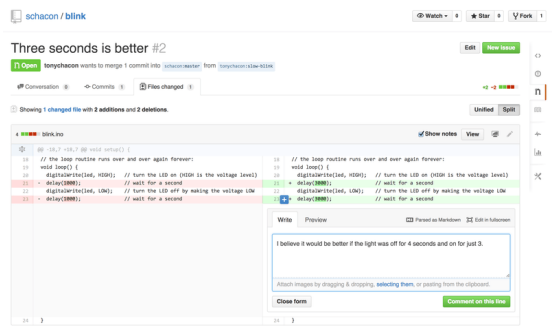 Figure 92 p. 183
Comment on a specific line of code in a Pull Request
Pull RequestCommitForkGitHub Flavored Markdownmaster+1
Figure 92 p. 183
Comment on a specific line of code in a Pull Request
Pull RequestCommitForkGitHub Flavored Markdownmaster+1
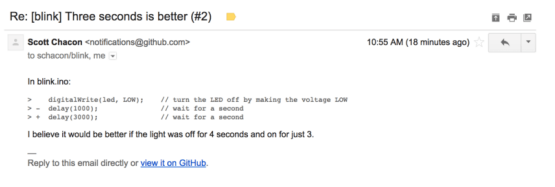 Figure 93 p. 183
Comments sent as email notifications
GitHub
Figure 93 p. 183
Comments sent as email notifications
GitHub
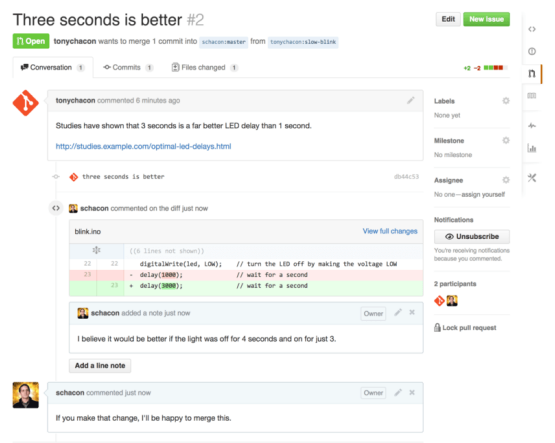 Figure 94 p. 184
Pull Request discussion page
Pull RequestCommitmasterMergePatch
Figure 94 p. 184
Pull Request discussion page
Pull RequestCommitmasterMergePatch
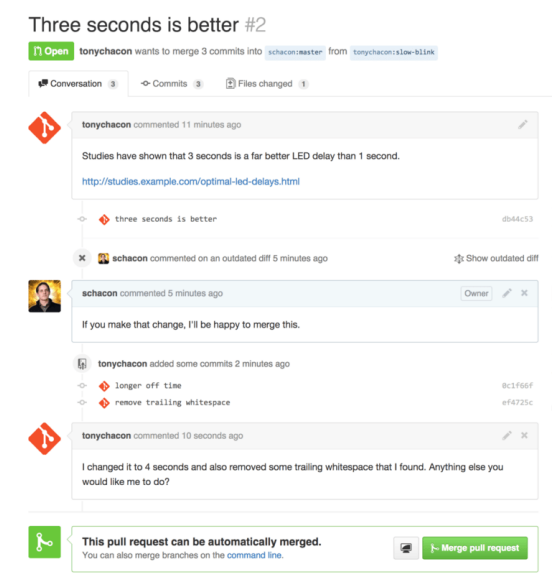 Figure 95 p. 185
Pull Request final
Pull RequestBranchCommand lineCommitmaster+2
Figure 95 p. 185
Pull Request final
Pull RequestBranchCommand lineCommitmaster+2
 Figure 96 p. 187
Pull Request does not merge cleanly
MergePull RequestMerge conflictRepository
Figure 96 p. 187
Pull Request does not merge cleanly
MergePull RequestMerge conflictRepository
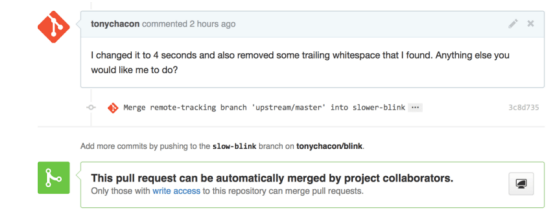 Figure 97 p. 188
Pull Request now merges cleanly
MergePull RequestBranchCollaboratorCommit+5
Figure 97 p. 188
Pull Request now merges cleanly
MergePull RequestBranchCollaboratorCommit+5
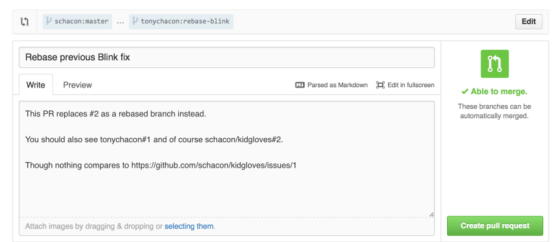 Figure 98 p. 189
Cross references in a Pull Request
Pull RequestReferenceBranchGitHubGitHub Flavored Markdown+3
Figure 98 p. 189
Cross references in a Pull Request
Pull RequestReferenceBranchGitHubGitHub Flavored Markdown+3
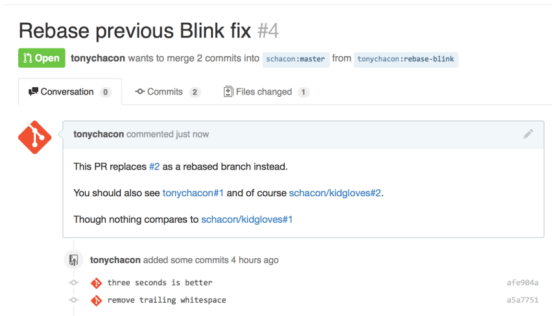 Figure 99 p. 189
Cross references rendered in a Pull Request
Pull RequestReferenceBranchCommitmaster+2
Figure 99 p. 189
Cross references rendered in a Pull Request
Pull RequestReferenceBranchCommitmaster+2
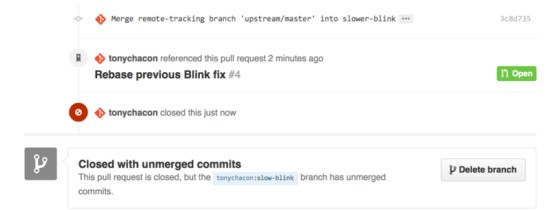 Figure 100 p. 190
Link back to the new Pull Request in the closed Pull Request timeline
Pull RequestBranchCommitmasterMerge+5
Figure 100 p. 190
Link back to the new Pull Request in the closed Pull Request timeline
Pull RequestBranchCommitmasterMerge+5
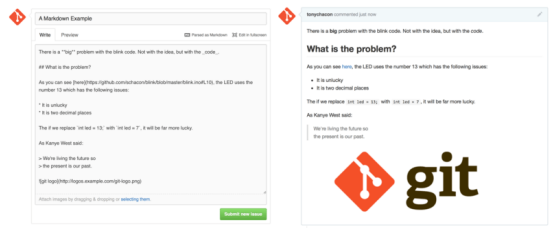 Figure 101 p. 191
An example of GitHub Flavored Markdown as written and as rendered
GitHub Flavored Markdown
Figure 101 p. 191
An example of GitHub Flavored Markdown as written and as rendered
GitHub Flavored Markdown
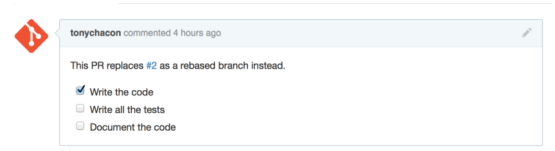 Figure 102 p. 191
Task lists rendered in a Markdown comment
GitHub Flavored MarkdownBranchRebase
Figure 102 p. 191
Task lists rendered in a Markdown comment
GitHub Flavored MarkdownBranchRebase
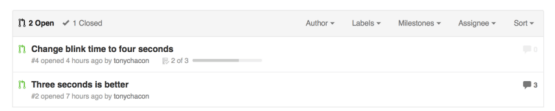 Figure 103 p. 192
Task list summary in the Pull Request list
Pull RequestAuthor
Figure 103 p. 192
Task list summary in the Pull Request list
Pull RequestAuthor
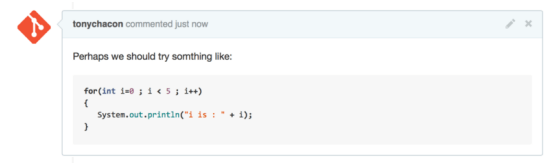 Figure 104 p. 193
Rendered fenced code example
Figure 104 p. 193
Rendered fenced code example
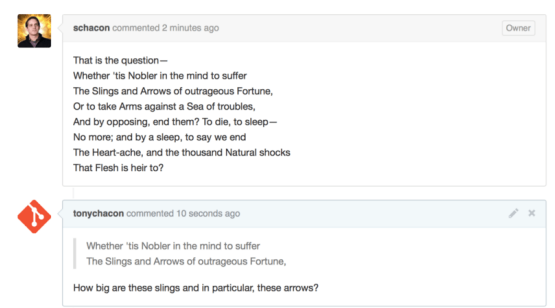 Figure 105 p. 193
Rendered quoting example
Figure 105 p. 193
Rendered quoting example
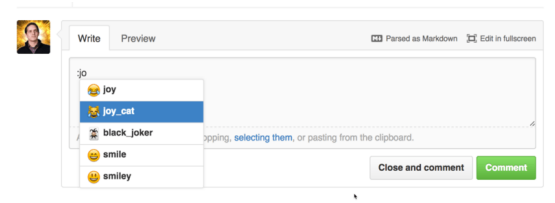 Figure 106 p. 194
Emoji autocompleter in action
GitHub Flavored Markdown
Figure 106 p. 194
Emoji autocompleter in action
GitHub Flavored Markdown
 Figure 107 p. 194
Heavy emoji commenting
Figure 107 p. 194
Heavy emoji commenting
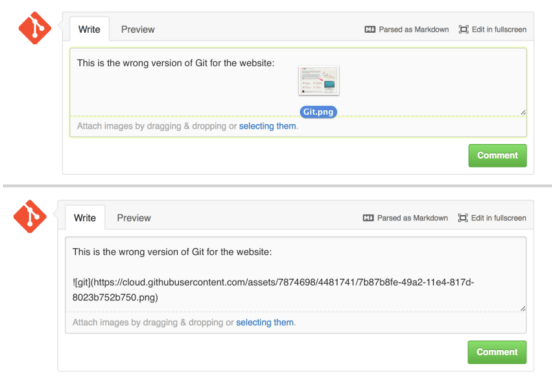 Figure 108 p. 195
Drag and drop images to upload them and auto-embed them
GitHub Flavored Markdown
Figure 108 p. 195
Drag and drop images to upload them and auto-embed them
GitHub Flavored Markdown
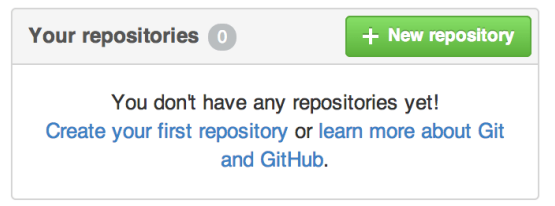 Figure 109 p. 197
The “Your repositories” area
RepositoryGitHub
Figure 109 p. 197
The “Your repositories” area
RepositoryGitHub
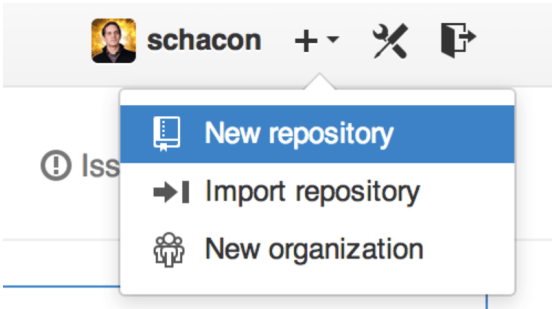 Figure 110 p. 197
The “New repository” dropdown
RepositoryGitHub organization
Figure 110 p. 197
The “New repository” dropdown
RepositoryGitHub organization
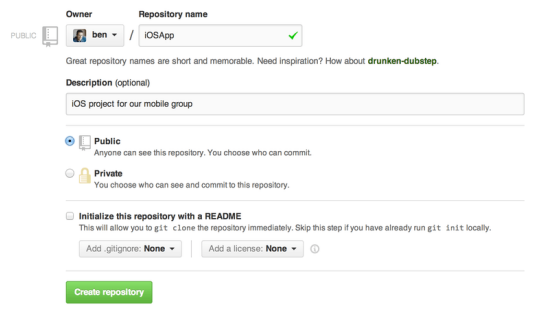 Figure 111 p. 198
The “new repository” form
Repository.gitignoreCommitgit clonegit init
Figure 111 p. 198
The “new repository” form
Repository.gitignoreCommitgit clonegit init
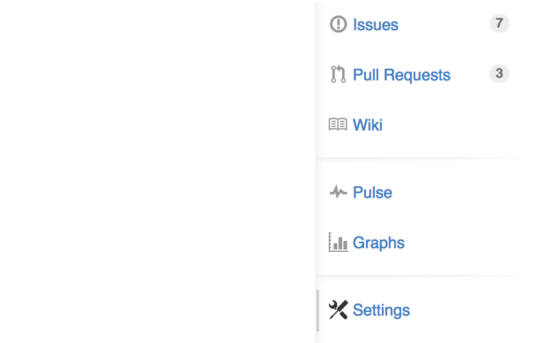 Figure 112 p. 199
The repository settings link
RepositoryPull Request
Figure 112 p. 199
The repository settings link
RepositoryPull Request
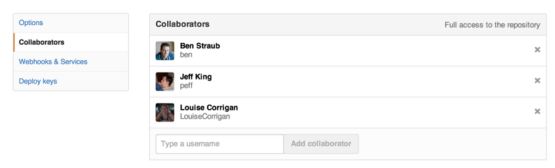 Figure 113 p. 199
The repository collaborators box
CollaboratorRepository
Figure 113 p. 199
The repository collaborators box
CollaboratorRepository
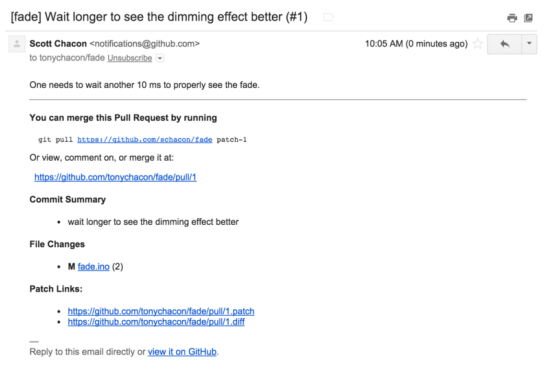 Figure 114 p. 200
Email notification of a new Pull Request
Pull RequestCommitgit pullGitHubMerge+1
Figure 114 p. 200
Email notification of a new Pull Request
Pull RequestCommitgit pullGitHubMerge+1
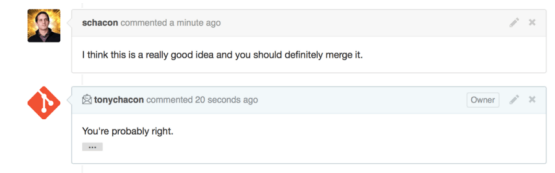 Figure 115 p. 201
Responses to emails are included in the thread
Merge
Figure 115 p. 201
Responses to emails are included in the thread
Merge
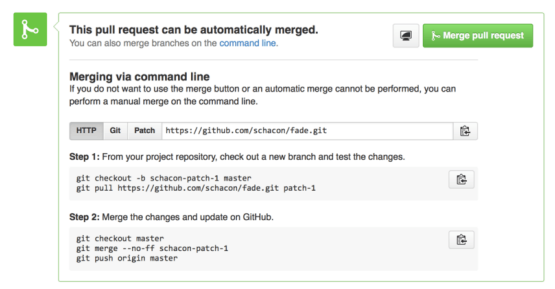 Figure 116 p. 202
Merge button and instructions for merging a Pull Request manually
MergePull RequestBranchCommand linegit checkout+8
Figure 116 p. 202
Merge button and instructions for merging a Pull Request manually
MergePull RequestBranchCommand linegit checkout+8
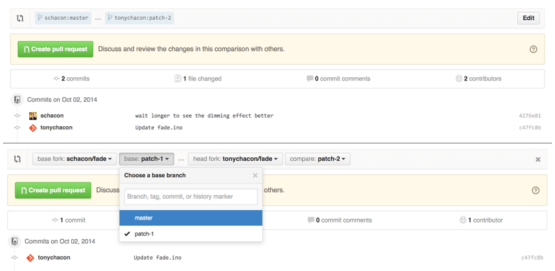 Figure 117 p. 205
Manually change the Pull Request target fork and branch
BranchForkPull RequestCommitCommit history+3
Figure 117 p. 205
Manually change the Pull Request target fork and branch
BranchForkPull RequestCommitCommit history+3
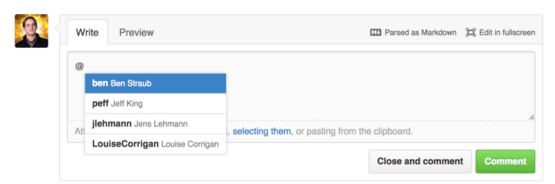 Figure 118 p. 205
Start typing @ to mention someone
GitHub Flavored Markdown
Figure 118 p. 205
Start typing @ to mention someone
GitHub Flavored Markdown
 Figure 119 p. 206
Unsubscribe from an Issue or Pull Request
Pull Request
Figure 119 p. 206
Unsubscribe from an Issue or Pull Request
Pull Request
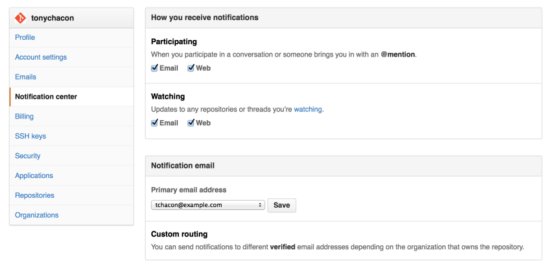 Figure 120 p. 207
Notification center options
GitHub organizationRepositorySSH public key
Figure 120 p. 207
Notification center options
GitHub organizationRepositorySSH public key
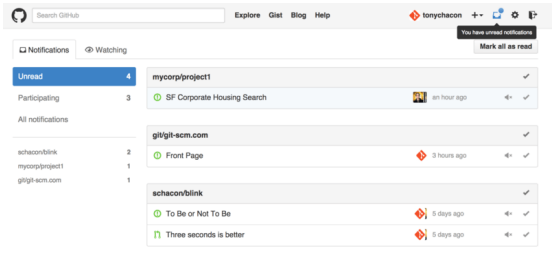 Figure 121 p. 207
Notification center
Figure 121 p. 207
Notification center
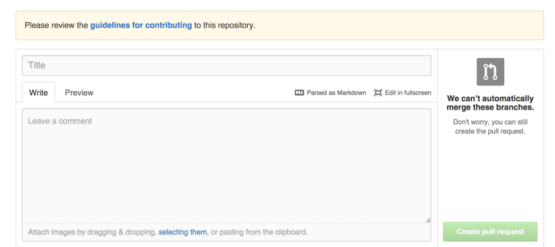 Figure 122 p. 209
Opening a Pull Request when a CONTRIBUTING file exists
Pull RequestBranchGitHub Flavored MarkdownMergeRepository
Figure 122 p. 209
Opening a Pull Request when a CONTRIBUTING file exists
Pull RequestBranchGitHub Flavored MarkdownMergeRepository
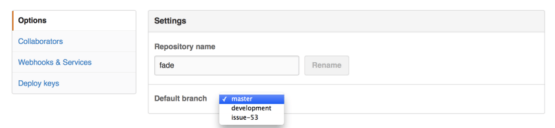 Figure 123 p. 210
Change the default branch for a project
Default branch nameCollaboratorRepository
Figure 123 p. 210
Change the default branch for a project
Default branch nameCollaboratorRepository
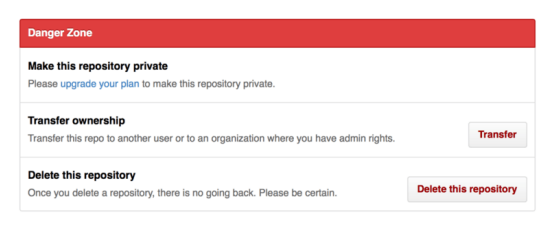 Figure 124 p. 210
Transfer a project to another GitHub user or Organization
GitHub organizationGitHubRepository
Figure 124 p. 210
Transfer a project to another GitHub user or Organization
GitHub organizationGitHubRepository
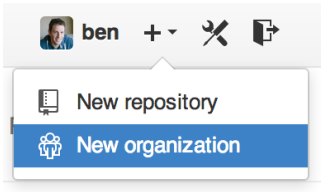 Figure 125 p. 211
The “New organization” menu item
GitHub organizationRepository
Figure 125 p. 211
The “New organization” menu item
GitHub organizationRepository
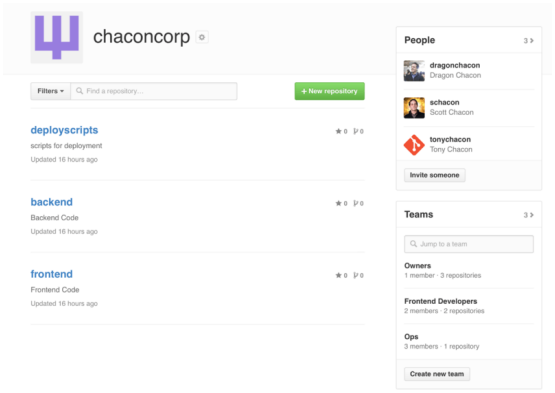 Figure 126 p. 212
The Organization page
GitHub organizationRepository
Figure 126 p. 212
The Organization page
GitHub organizationRepository
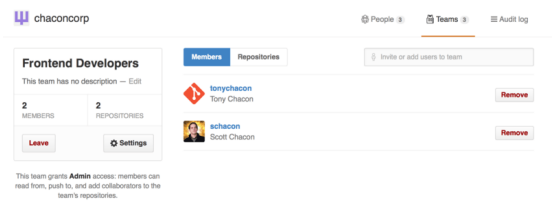 Figure 127 p. 213
The Team page
Collaboratorgit pushRepository
Figure 127 p. 213
The Team page
Collaboratorgit pushRepository
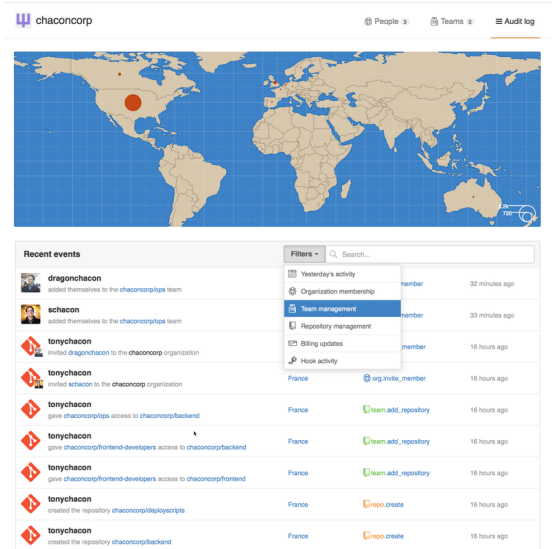 Figure 128 p. 214
The Audit log
Git hooksGitHub organizationRepository
Figure 128 p. 214
The Audit log
Git hooksGitHub organizationRepository
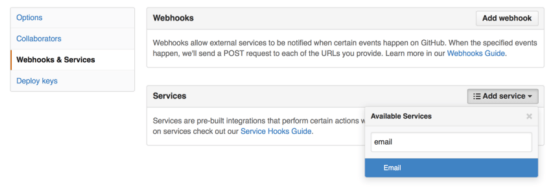 Figure 129 p. 215
Services and Hooks configuration section
Git hooksCollaboratorgit checkoutGitHub
Figure 129 p. 215
Services and Hooks configuration section
Git hooksCollaboratorgit checkoutGitHub
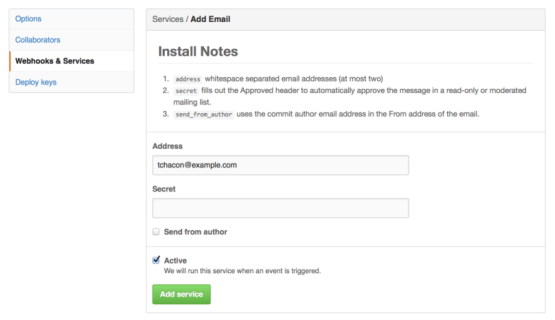 Figure 130 p. 215
Email service configuration
AuthorCollaboratorCommit
Figure 130 p. 215
Email service configuration
AuthorCollaboratorCommit
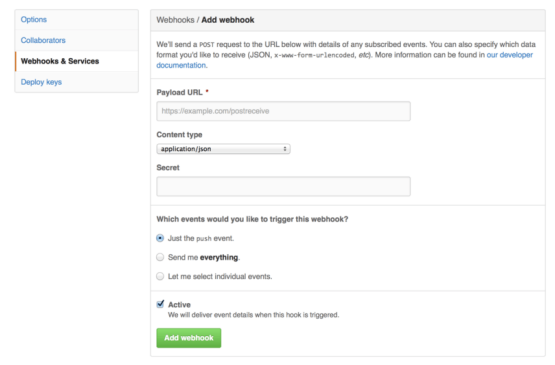 Figure 131 p. 216
Web hook configuration
Git hooksCollaboratorgit push
Figure 131 p. 216
Web hook configuration
Git hooksCollaboratorgit push
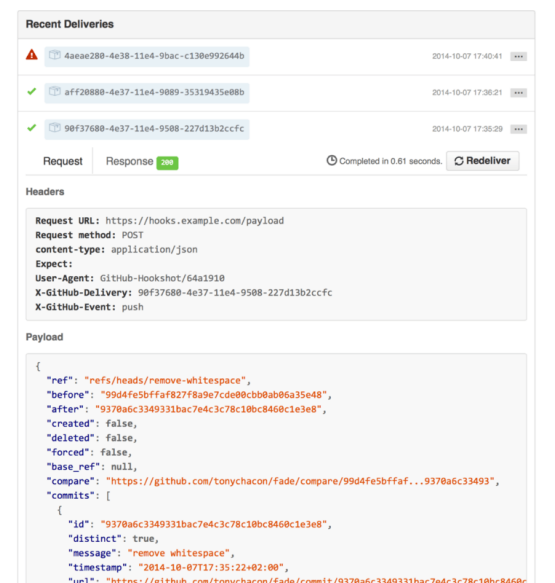 Figure 132 p. 218
Web hook debugging information
Git hooksCommitgit pushGitHubReference
Figure 132 p. 218
Web hook debugging information
Git hooksCommitgit pushGitHubReference
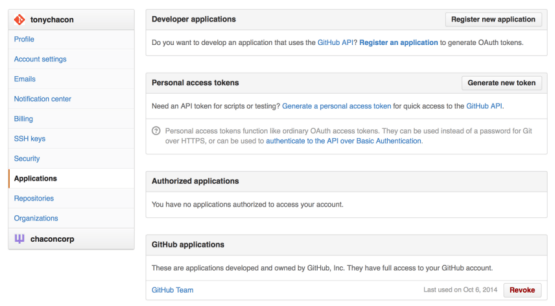 Figure 133 p. 220
Generate your access token from the “Applications” tab of your settings page
GitHubGitHub APISSH public key
Figure 133 p. 220
Generate your access token from the “Applications” tab of your settings page
GitHubGitHub APISSH public key
 Figure 134 p. 221
A comment posted from the GitHub API
GitHub API
Figure 134 p. 221
A comment posted from the GitHub API
GitHub API
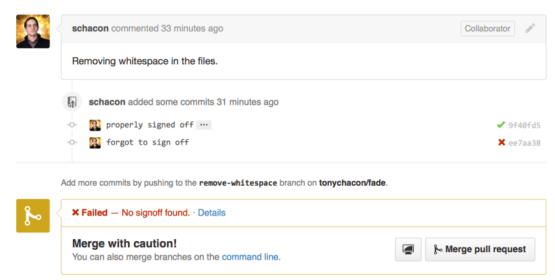 Figure 135 p. 223
Commit status via the API
CommitGitHub APIBranchCollaboratorCommand line+3
Figure 135 p. 223
Commit status via the API
CommitGitHub APIBranchCollaboratorCommand line+3
 Figure 136 p. 230
Example history for range selection
Commit history
Figure 136 p. 230
Example history for range selection
Commit history
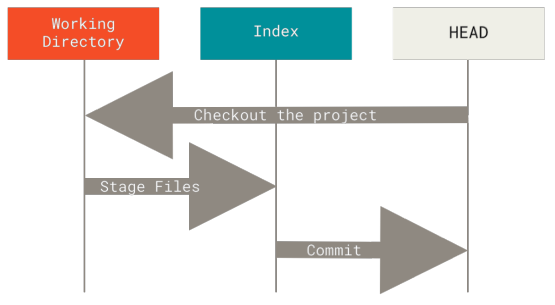 Figure 137 p. 259
Git’s typical workflow
Commitgit checkoutHEADStaging area
Figure 137 p. 259
Git’s typical workflow
Commitgit checkoutHEADStaging area
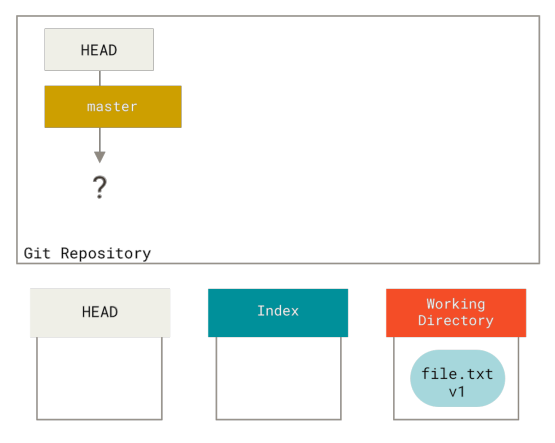 Figure 138 p. 260
Newly-initialized Git repository with unstaged file in the working directory
RepositoryWorking treeUnstagingHEAD
Figure 138 p. 260
Newly-initialized Git repository with unstaged file in the working directory
RepositoryWorking treeUnstagingHEAD
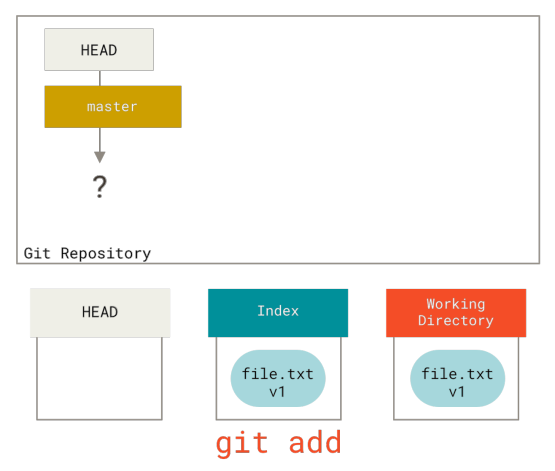 Figure 139 p. 261
File is copied to index on git add
git addStaging areaHEADRepository
Figure 139 p. 261
File is copied to index on git add
git addStaging areaHEADRepository
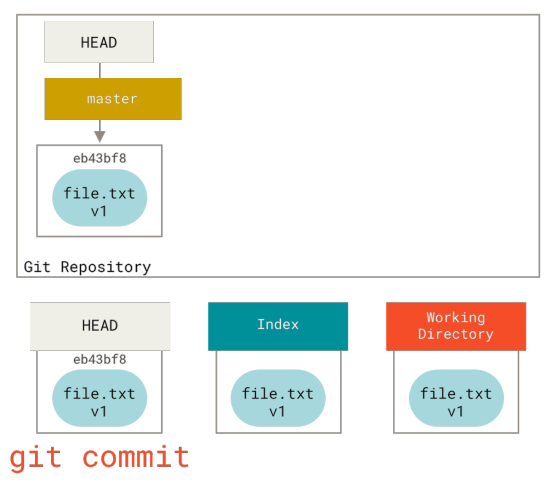 Figure 140 p. 262
The git commit step
git commitHEADRepositoryStaging area
Figure 140 p. 262
The git commit step
git commitHEADRepositoryStaging area
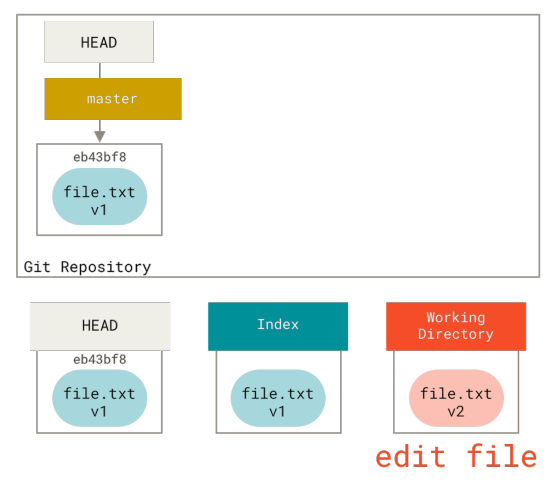 Figure 141 p. 263
Git repository with changed file in the working directory
RepositoryWorking treeHEADStaging area
Figure 141 p. 263
Git repository with changed file in the working directory
RepositoryWorking treeHEADStaging area
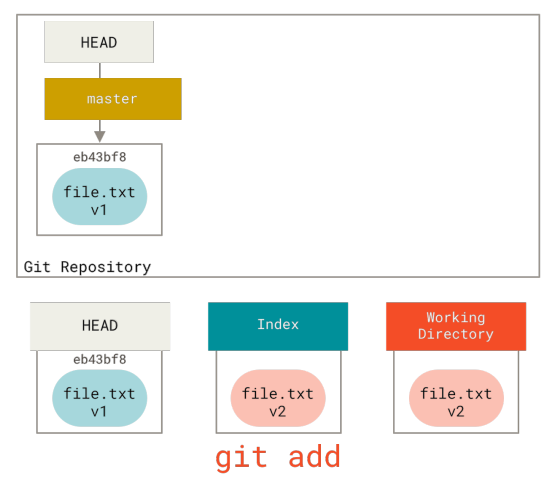 Figure 142 p. 264
Staging change to index
Staging areagit addHEADRepository
Figure 142 p. 264
Staging change to index
Staging areagit addHEADRepository
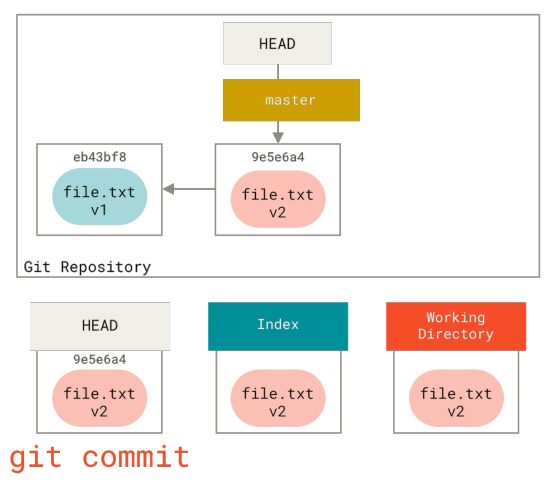 Figure 143 p. 265
The git commit step with changed file
git commitHEADmasterRepositoryStaging area+1
Figure 143 p. 265
The git commit step with changed file
git commitHEADmasterRepositoryStaging area+1
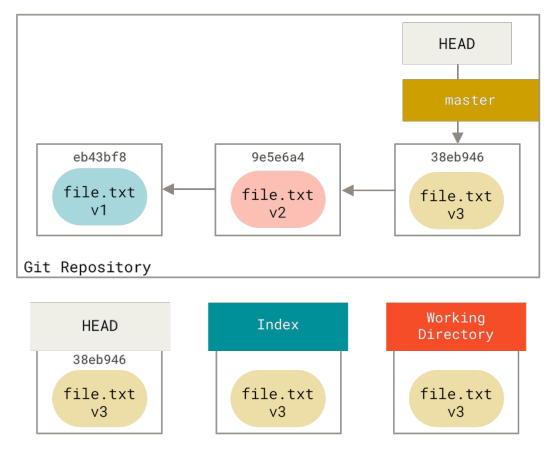 Figure 144 p. 266
Git repository with three commits
RepositoryCommitHEADmasterStaging area+1
Figure 144 p. 266
Git repository with three commits
RepositoryCommitHEADmasterStaging area+1
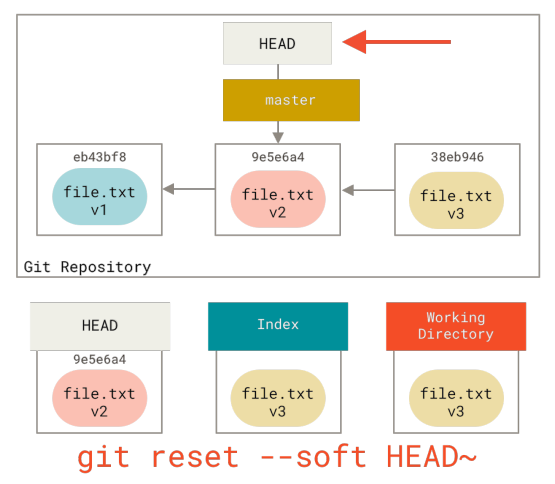 Figure 145 p. 267
Soft reset
git resetHEADmasterRepositoryReset modes+1
Figure 145 p. 267
Soft reset
git resetHEADmasterRepositoryReset modes+1
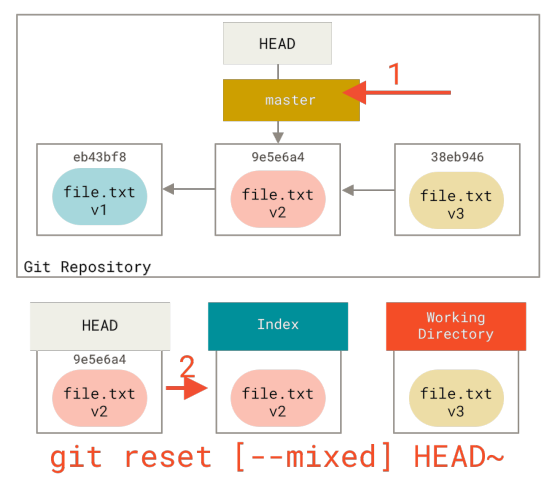 Figure 146 p. 268
Mixed reset
git resetHEADmasterRepositoryReset modes+1
Figure 146 p. 268
Mixed reset
git resetHEADmasterRepositoryReset modes+1
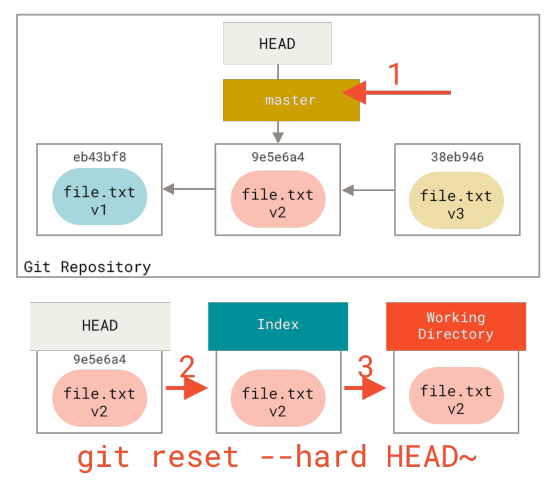 Figure 147 p. 269
Hard reset
git resetHEADmasterRepositoryReset modes+1
Figure 147 p. 269
Hard reset
git resetHEADmasterRepositoryReset modes+1
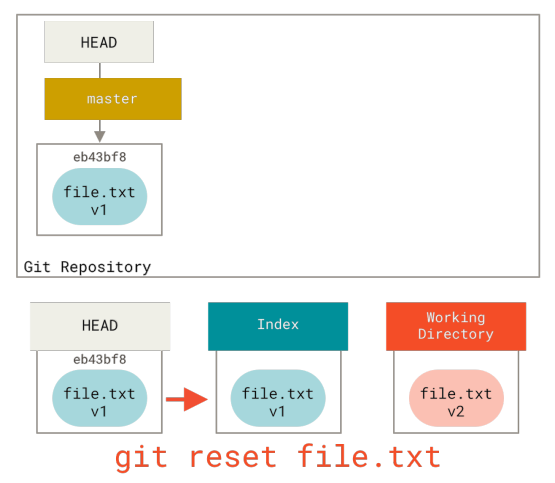 Figure 148 p. 270
Mixed reset with a path
git resetHEADRepositoryStaging areaWorking tree
Figure 148 p. 270
Mixed reset with a path
git resetHEADRepositoryStaging areaWorking tree
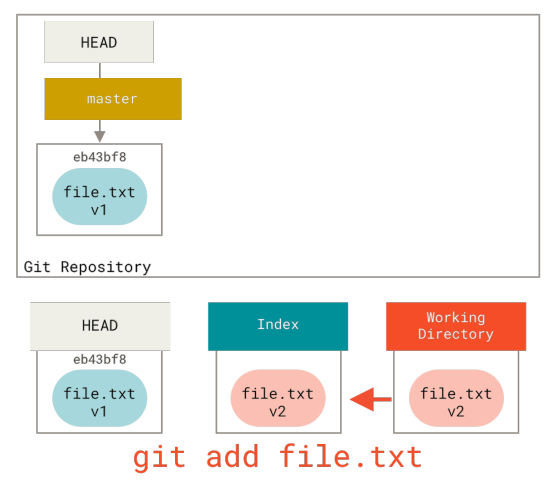 Figure 149 p. 271
Staging file to index
Staging areaHEADRepository
Figure 149 p. 271
Staging file to index
Staging areaHEADRepository
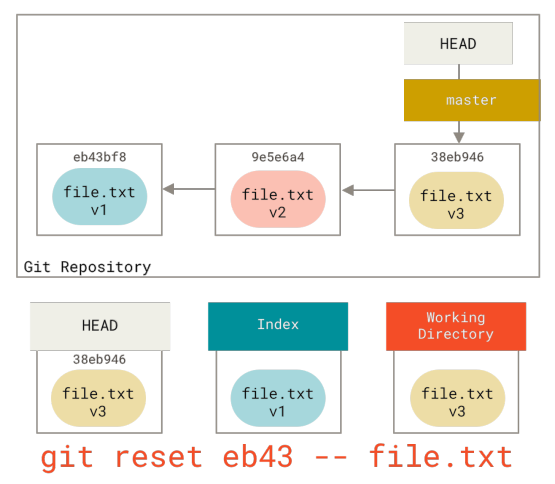 Figure 150 p. 272
Soft reset with a path to a specific commit
git resetCommitHEADmasterRepository+1
Figure 150 p. 272
Soft reset with a path to a specific commit
git resetCommitHEADmasterRepository+1
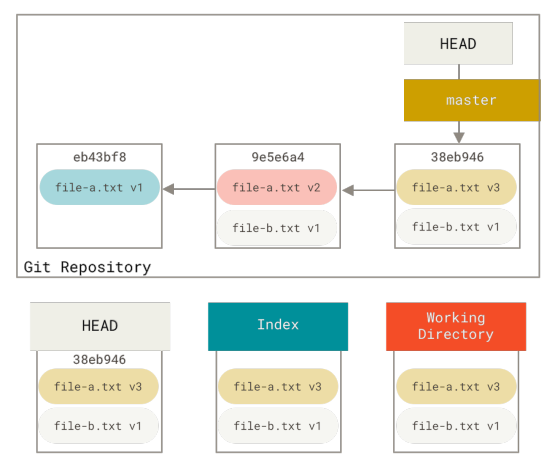 Figure 151 p. 273
Git repository
RepositoryHEADmasterStaging areaWorking tree
Figure 151 p. 273
Git repository
RepositoryHEADmasterStaging areaWorking tree
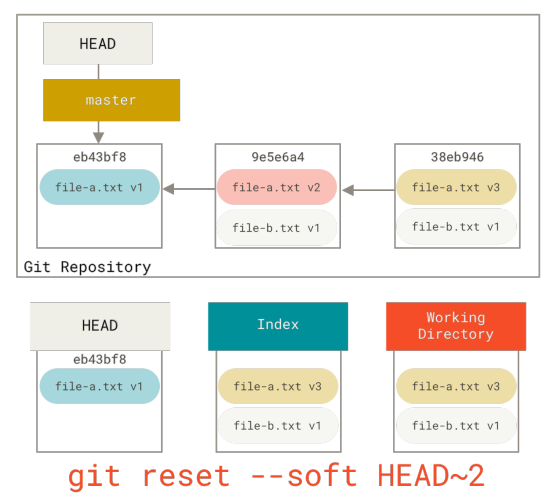 Figure 152 p. 274
Moving HEAD with soft reset
HEADgit resetmasterRepositoryReset modes+2
Figure 152 p. 274
Moving HEAD with soft reset
HEADgit resetmasterRepositoryReset modes+2
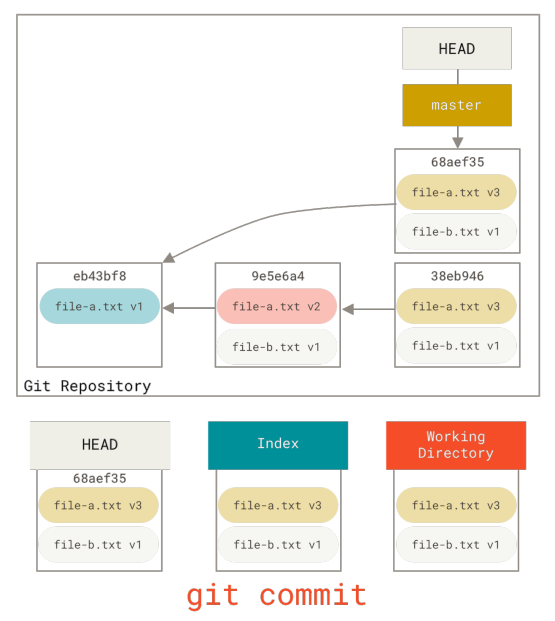 Figure 153 p. 275
Git repository with squashed commit
RepositoryCommitSquashinggit commitHEAD+2
Figure 153 p. 275
Git repository with squashed commit
RepositoryCommitSquashinggit commitHEAD+2
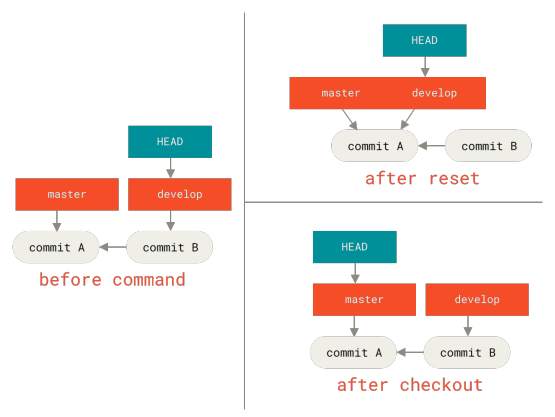 Figure 154 p. 276
git checkout and git reset
git checkoutgit resetCommitHEADmaster
Figure 154 p. 276
git checkout and git reset
git checkoutgit resetCommitHEADmaster
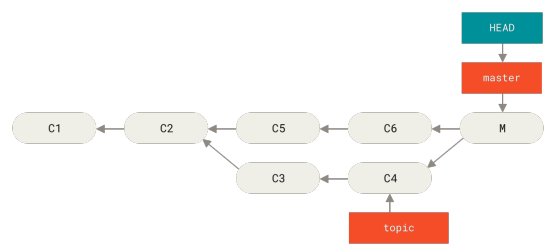 Figure 155 p. 288
Accidental merge commit
Merge commitHEADmaster
Figure 155 p. 288
Accidental merge commit
Merge commitHEADmaster
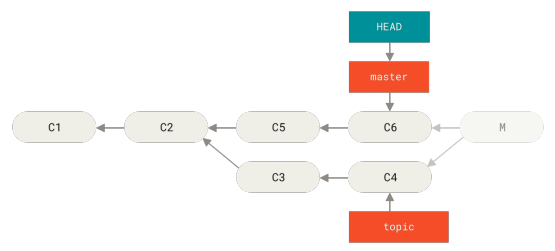 Figure 156 p. 289
History after git reset --hard HEAD~
HEADCommit historyReset modesmaster
Figure 156 p. 289
History after git reset --hard HEAD~
HEADCommit historyReset modesmaster
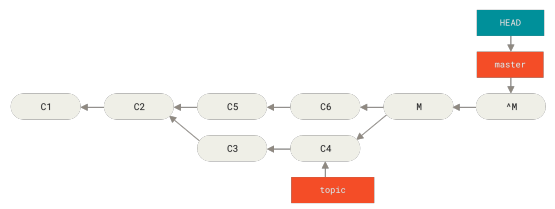 Figure 157 p. 290
History after git revert -m 1
Commit historygit revertHEADmaster
Figure 157 p. 290
History after git revert -m 1
Commit historygit revertHEADmaster
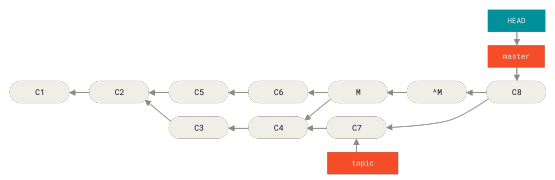 Figure 158 p. 290
History with a bad merge
Commit historyMergeHEADmaster
Figure 158 p. 290
History with a bad merge
Commit historyMergeHEADmaster
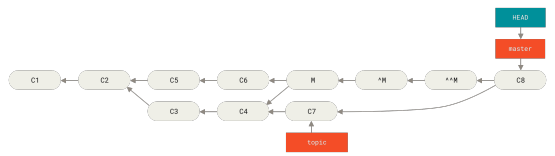 Figure 159 p. 291
History after re-merging a reverted merge
MergeCommit history
Figure 159 p. 291
History after re-merging a reverted merge
MergeCommit history
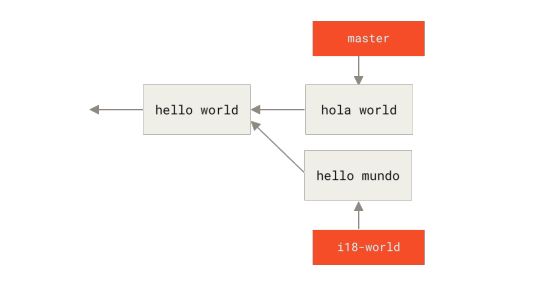 Figure 160 p. 296
Two branches changing the same part of the same file differently
Branch
Figure 160 p. 296
Two branches changing the same part of the same file differently
Branch
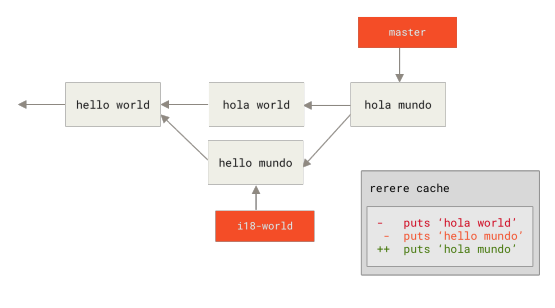 Figure 161 p. 298
Recorded resolution for FILE
Rerere
Figure 161 p. 298
Recorded resolution for FILE
Rerere
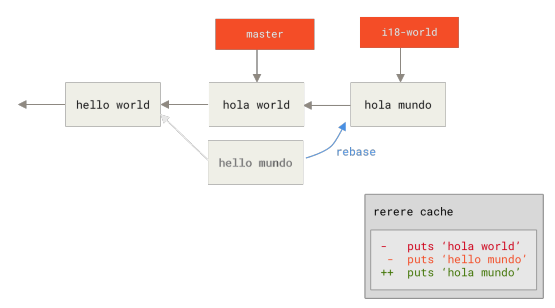 Figure 162 p. 300
Automatically resolved merge conflict using previous resolution
Merge conflictRerere
Figure 162 p. 300
Automatically resolved merge conflict using previous resolution
Merge conflictRerere
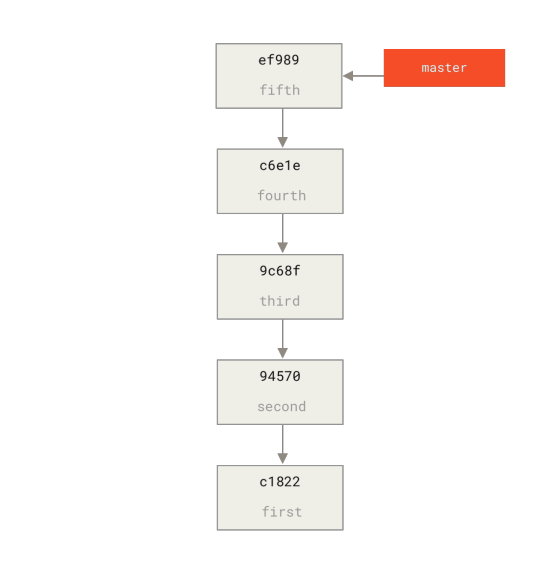 Figure 163 p. 329
Example Git history
Commit history
Figure 163 p. 329
Example Git history
Commit history
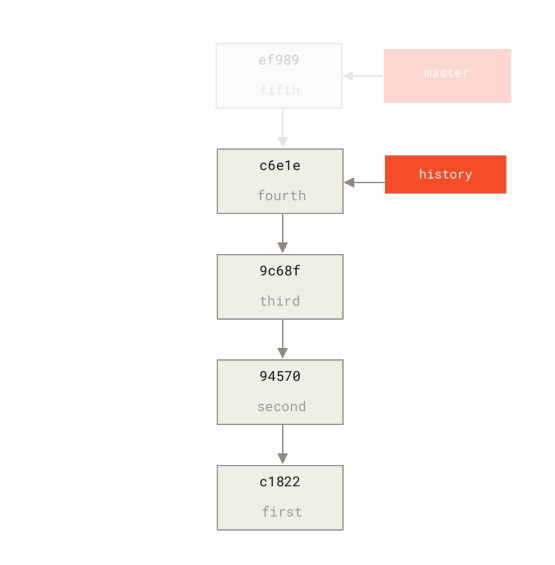 Figure 164 p. 330
Creating a new history branch
BranchCommit history
Figure 164 p. 330
Creating a new history branch
BranchCommit history
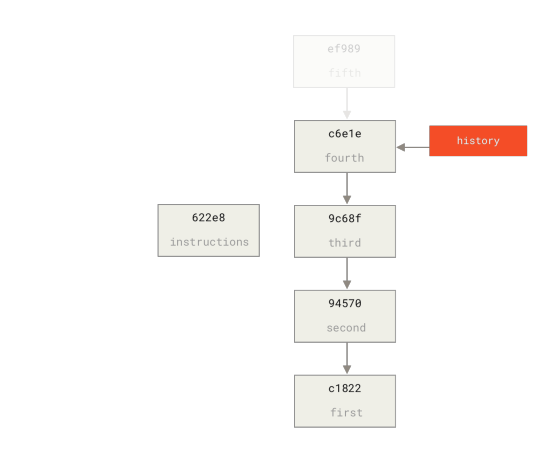 Figure 165 p. 332
Creating a base commit using commit-tree
CommitTree object
Figure 165 p. 332
Creating a base commit using commit-tree
CommitTree object
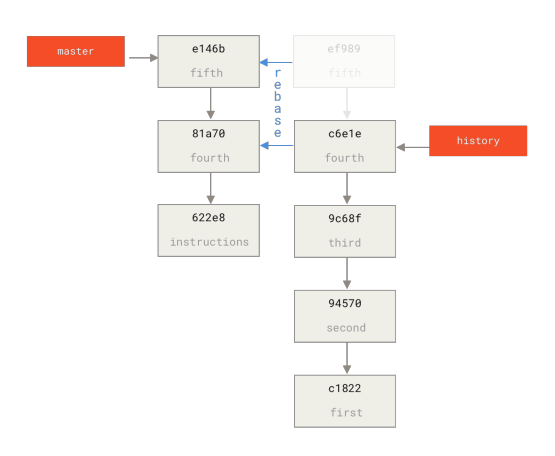 Figure 166 p. 333
Rebasing the history on top of the base commit
CommitCommit historyRebase
Figure 166 p. 333
Rebasing the history on top of the base commit
CommitCommit historyRebase
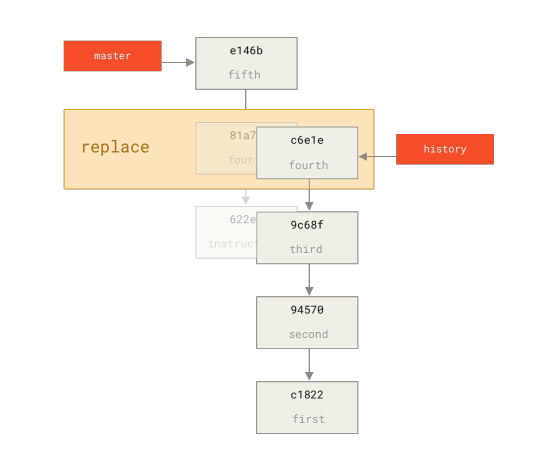 Figure 167 p. 335
Combining the commits with git replace
CommitCommit history
Figure 167 p. 335
Combining the commits with git replace
CommitCommit history
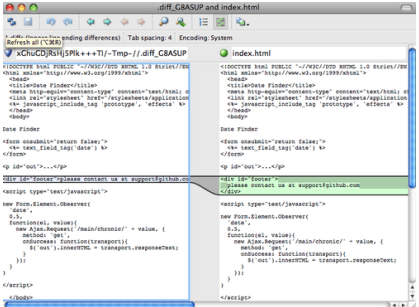 Figure 168 p. 348
P4Merge
PatchStaging areaTag
Figure 168 p. 348
P4Merge
PatchStaging areaTag
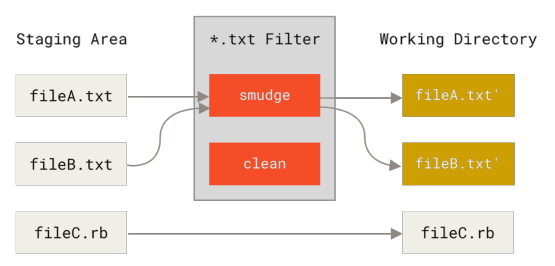 Figure 169 p. 356
The “smudge” filter is run on checkout
git checkoutStaging areaWorking tree
Figure 169 p. 356
The “smudge” filter is run on checkout
git checkoutStaging areaWorking tree
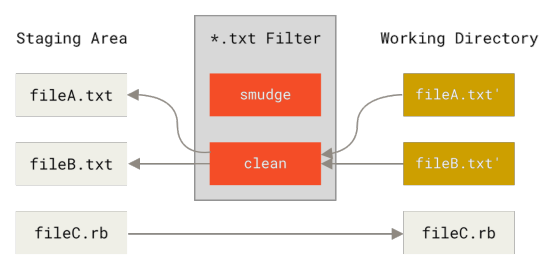 Figure 170 p. 357
The “clean” filter is run when files are staged
StagedStaging areaWorking tree
Figure 170 p. 357
The “clean” filter is run when files are staged
StagedStaging areaWorking tree
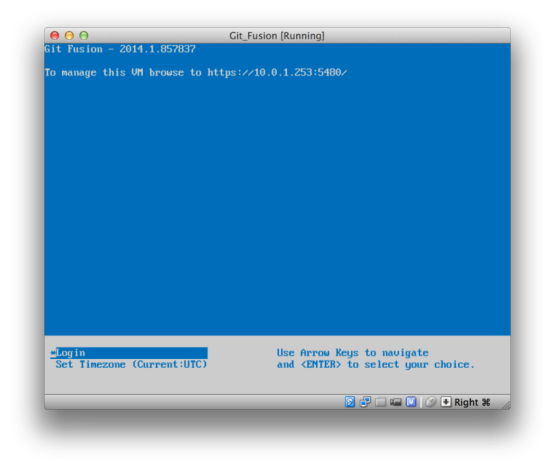 Figure 171 p. 392
The Git Fusion virtual machine boot screen
Figure 171 p. 392
The Git Fusion virtual machine boot screen
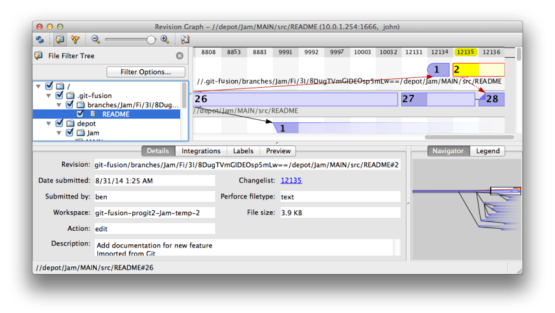 Figure 172 p. 397
Perforce revision graph resulting from Git push
git pushBranchTree object
Figure 172 p. 397
Perforce revision graph resulting from Git push
git pushBranchTree object
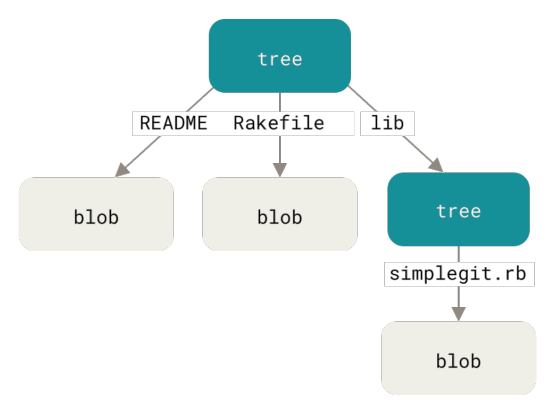 Figure 173 p. 424
Simple version of the Git data model
Blob
Figure 173 p. 424
Simple version of the Git data model
Blob
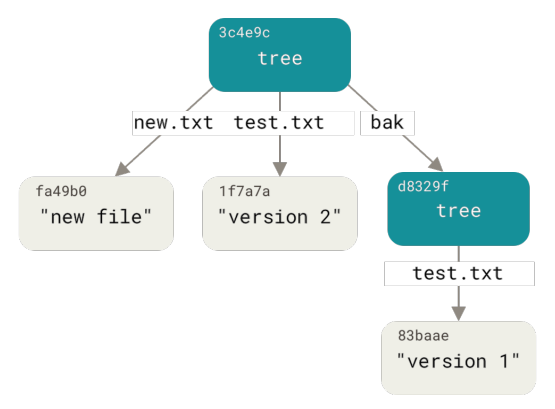 Figure 174 p. 426
The content structure of your current Git data
Tree object
Figure 174 p. 426
The content structure of your current Git data
Tree object
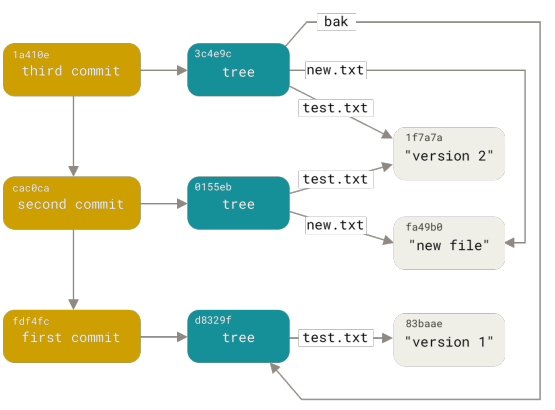 Figure 175 p. 429
All the reachable objects in your Git directory
Git directoryGit objectsCommitTree object
Figure 175 p. 429
All the reachable objects in your Git directory
Git directoryGit objectsCommitTree object
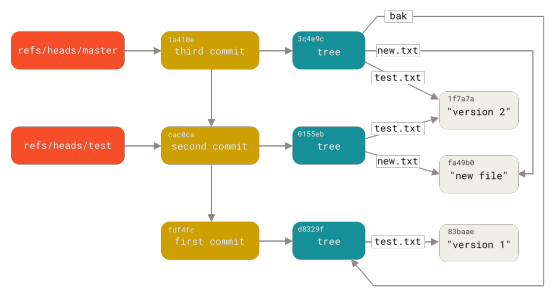 Figure 176 p. 432
Git directory objects with branch head references included
ReferenceBranchGit directoryGit objectsCommit+2
Figure 176 p. 432
Git directory objects with branch head references included
ReferenceBranchGit directoryGit objectsCommit+2
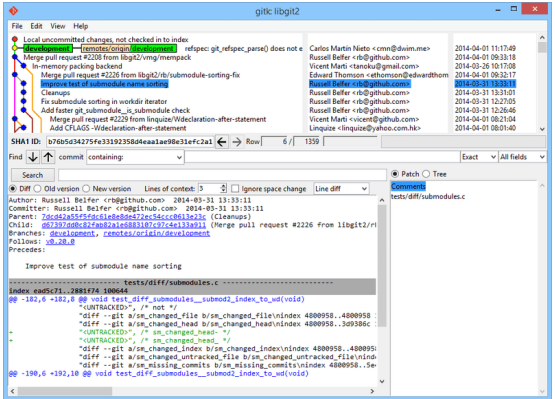 Figure 177 p. 460
The gitk history viewer
Commit historyBranchCommitCommitterGitHub+9
Figure 177 p. 460
The gitk history viewer
Commit historyBranchCommitCommitterGitHub+9
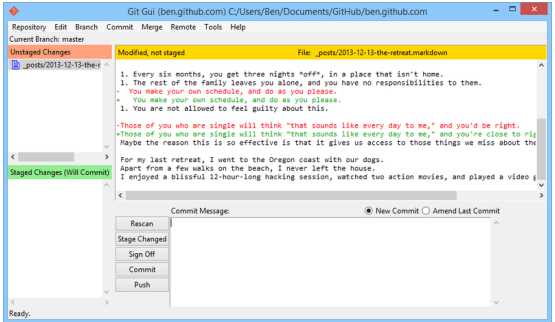 Figure 178 p. 461
The git-gui commit tool
CommitAmending a commitBranchCommit messagegit push+2
Figure 178 p. 461
The git-gui commit tool
CommitAmending a commitBranchCommit messagegit push+2
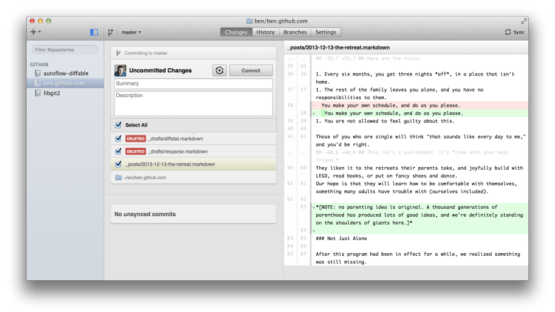 Figure 179 p. 462
GitHub for macOS
GitHubCommitGitHub Flavored MarkdownmasterParent commit+1
Figure 179 p. 462
GitHub for macOS
GitHubCommitGitHub Flavored MarkdownmasterParent commit+1
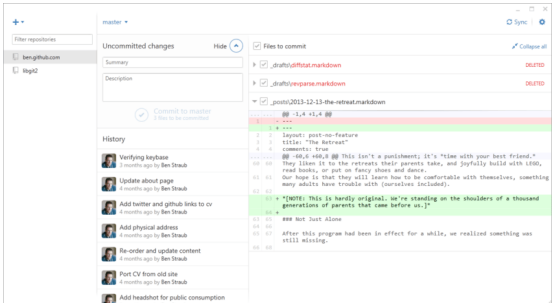 Figure 180 p. 462
GitHub for Windows
GitHubCommitCommit historyGitHub Flavored Markdownmaster+2
Figure 180 p. 462
GitHub for Windows
GitHubCommitCommit historyGitHub Flavored Markdownmaster+2
 Figure 181 p. 463
“Create Branch” button on macOS
Branchmaster
Figure 181 p. 463
“Create Branch” button on macOS
Branchmaster
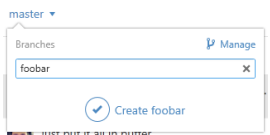 Figure 182 p. 464
Creating a branch on Windows
Branchmaster
Figure 182 p. 464
Creating a branch on Windows
Branchmaster
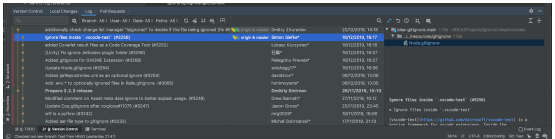 Figure 183 p. 466
Version Control ToolWindow in JetBrains IDEs
Version control.gitignoreBranchgit checkoutGitHub+5
Figure 183 p. 466
Version Control ToolWindow in JetBrains IDEs
Version control.gitignoreBranchgit checkoutGitHub+5
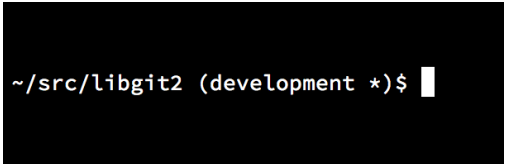 Figure 184 p. 467
Customized bash prompt
Figure 184 p. 467
Customized bash prompt
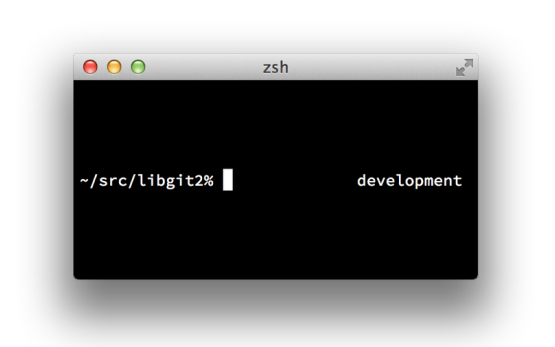 Figure 185 p. 468
Customized zsh prompt
Figure 185 p. 468
Customized zsh prompt
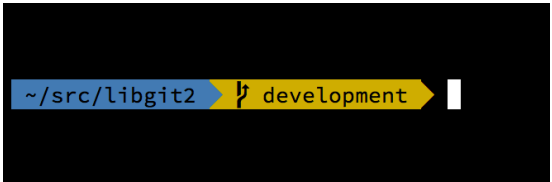 Figure 186 p. 469
An example of an oh-my-zsh theme
Figure 186 p. 469
An example of an oh-my-zsh theme
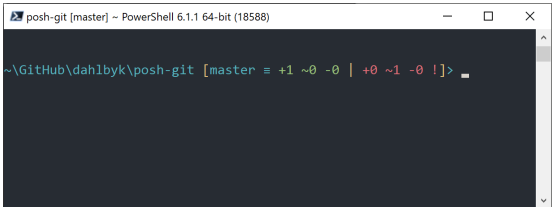 Figure 187 p. 469
PowerShell with Posh-git
GitHubmaster
Figure 187 p. 469
PowerShell with Posh-git
GitHubmaster